



 116
116
Accessing Your Office P: Drive
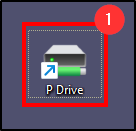
1. On your Desktop, click the P: Drive icon.
Accessing Another Office P: Drive
1. Open File Explorer  .
.
2. In the URL field, enter \\ralaw.com\OFFICE\OFFICEdata. Change where it says OFFICE to the 3 letter abbreviation of that office.
Example: If you wish to access the Cleveland P: Drive, the URL will be \\ralaw.com\CLE\CLEdata .
Moving Data to a P: Drive
1. If the data will be linked in iManage, create a new folder and prefix the name with “DO NOT DELETE - LINKED IN IMANAGE” followed by the client and matter numbers.
2. If it isn't going to be linked in iManage, create a folder if there are multiple files and name it with the client and matter numbers.

Linking a P: Drive Folder to iManage
1. Open the folder you created in the P: Drive.
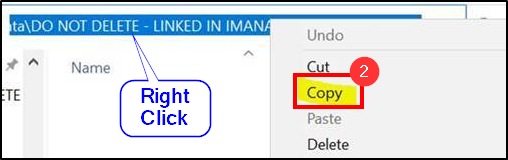
2. Click on the top URL bar and when it turns blue, right click and choose Copy.
3. Open a Word document and Paste what was copied.
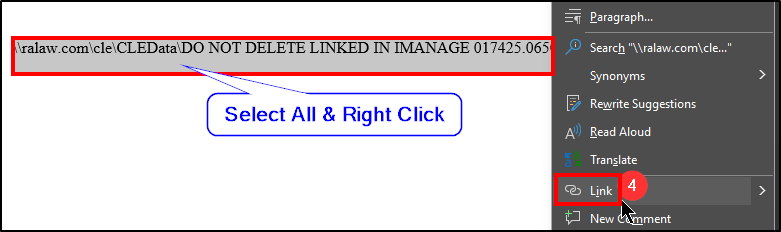
4. Select All the text from what was pasted and right click. Click Link.
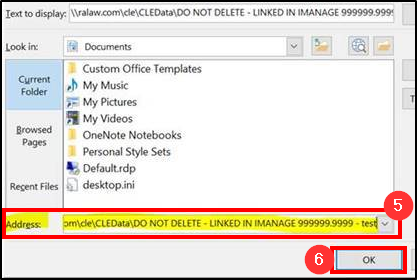
5. In the Address field, paste the link of the P: Drive folder.
6. Click OK.
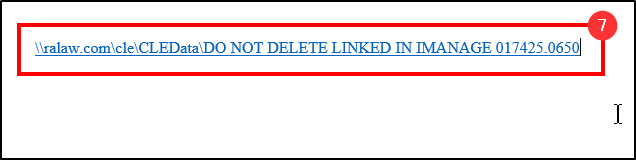
7. It should now be a clickable link within the Word document. File this document into iManage.
Questions? Contact Us!
IT Support Desk


Hours - 8:00AM - 6:00PM EST
Email - [email protected]
Phone - (330) 849-6699*
*For Emergency Assistance please use option 8


