



 123
123
About Mimecast Secure Messaging
- Mimecast Secure Messaging provides additional layers of security to standard email.
- Using this method will encrypt the message.
- Consider using Mimecast Secure Messaging for highly sensitive communications.
- Secure messaging should be used in emails to non-Roetzel employees.
Sending a Mimecast Secure Message
1. Open Outlook and click New Email .
2. Click the Mimecast tab.
3. Click Send Securely
4. Choose All Recipients .
5. You will now see that it shows the message "This email will be sent using Mimecast Secure Messaging".
Receiving a Mimecast Secure Message
NOTE: This process is only for users outside the firm.
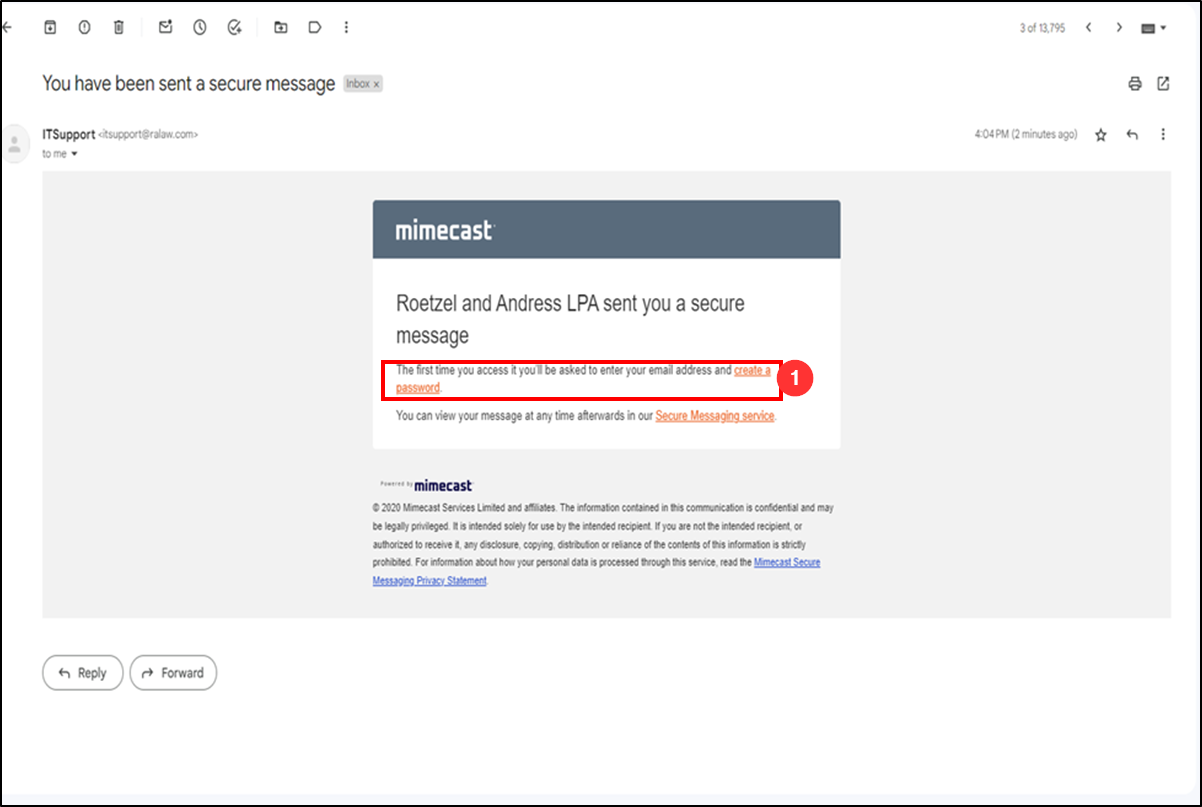
1. The user will receive an email from Mimecast to create a password. User should click link to create a password.
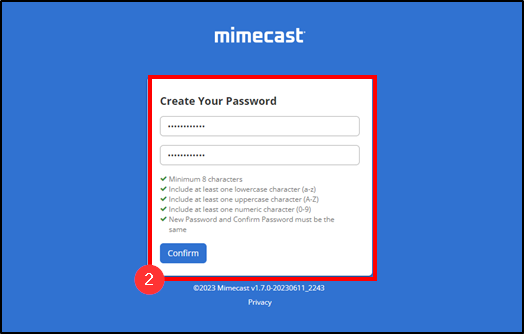
2. User should create a password and Confirm.
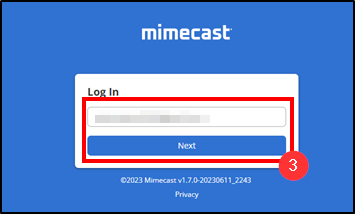
3. Upon completion of password creation, user will login. Type email address used when creating login and click Next.
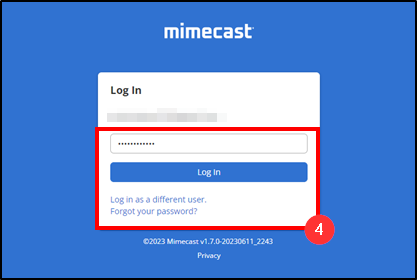
4. User should then enter password he/she created. If they forget this password, they should click Forgot Password to verify their email.
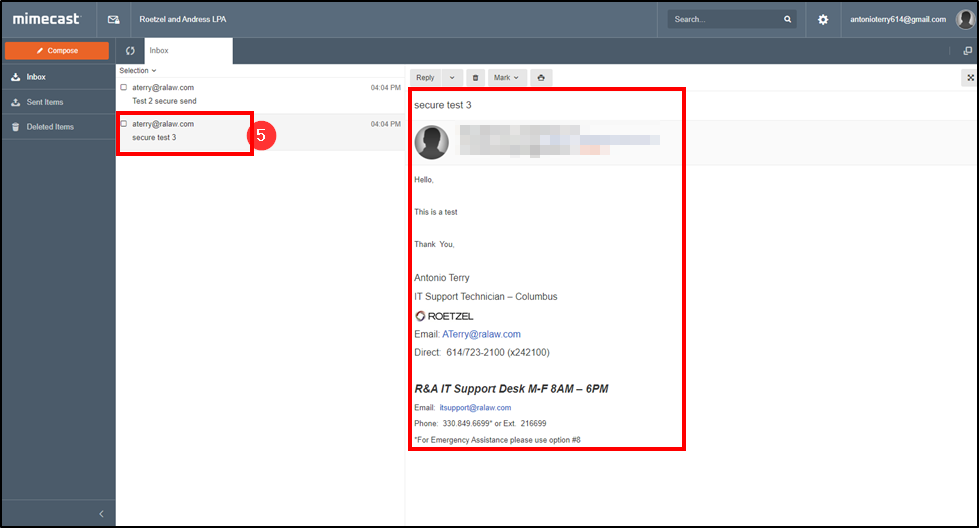
5. The user is now able to view, print and/or download secured email(s).
Questions? Contact Us!
IT Support Desk


Hours - 8:00AM - 6:00PM EST
Email - [email protected]
Phone - (330) 849-6699*
*For Emergency Assistance please use option 8

