



 45
45
About CD / DVDs
- Information may come in the form of a CD or DVD disc.
- As these are less common to see, the firm may encounter these and require the information off of them.
- As such, each Roetzel office should have a USB CD/DVD Reader to connect to any computer. If you need assistance, contact IT Support.
Connecting the CD / DVD Reader to Your Computer
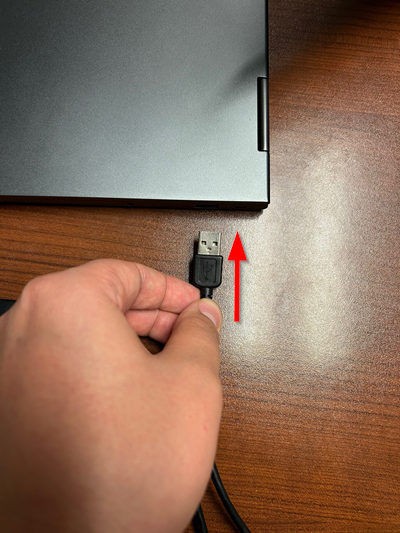
1. Plug the reader into an open USB port on your computer or docking station.
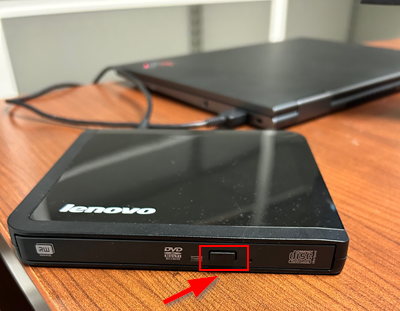
2. Once the DVD Driver is plugged in, press the Eject Button on the drive to open it.
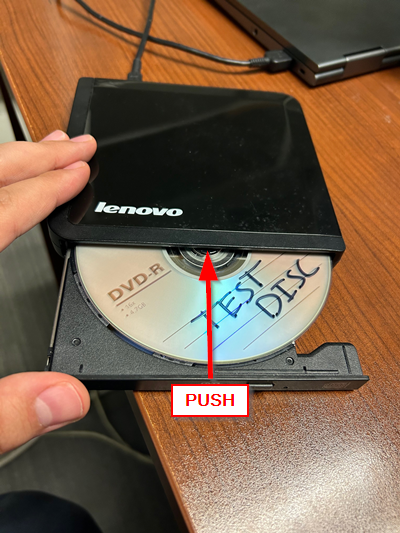
3. Insert the disc into the drive, then close it.
Viewing/Copying files off a CD / DVD
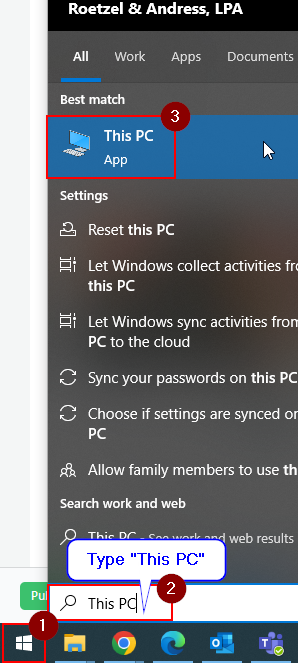
1. Click the Windows Start Button 
2. begin typing "This PC" into the search bar until you see the This PC icon appear.
3. Select This PC.
4. A window will pop-up. Under the Devices and Drives section, you will see the CD or DVD listed. Right click on the Disc.
5. Right click on the disc and select Open.
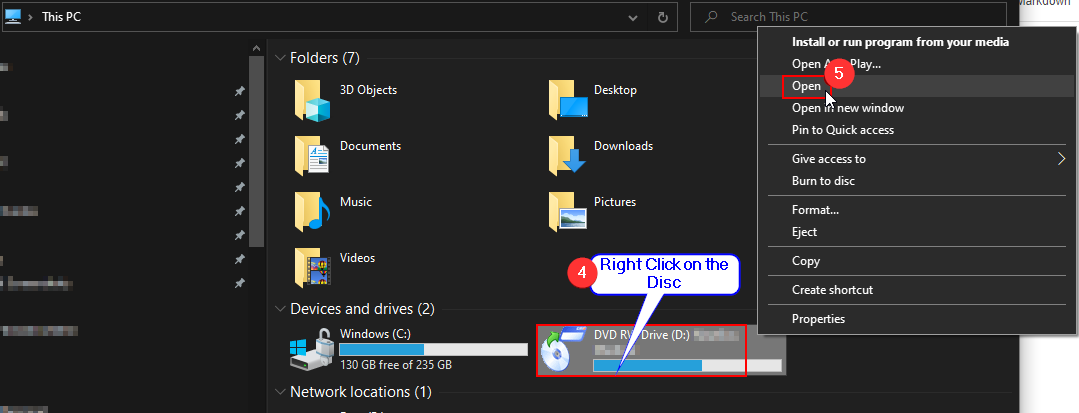
6. A new window will appear showing the contents of the disc.
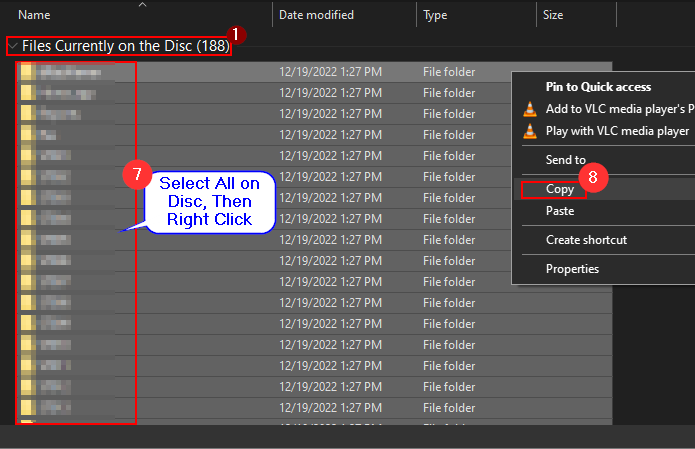
7. Select all files and folders within the Files Currently On The Disc section of the window (Click Files Currently on the Disc to select all files on the disc).
8. Right click and select Copy .
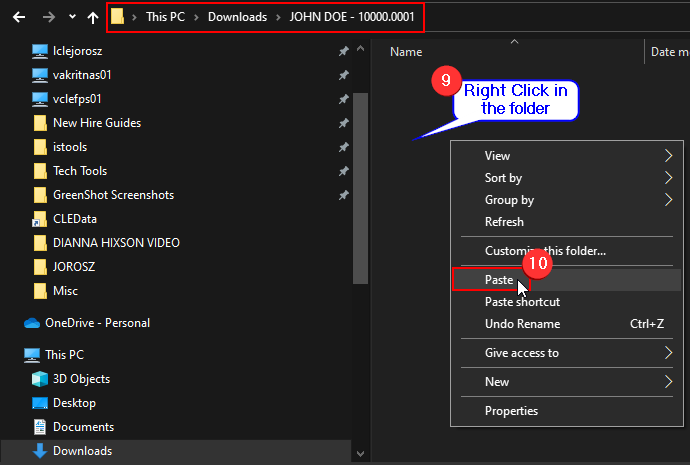
9. Go to the folder you wish to copy the information over to and right click on it (i.e., - JOHN DOE 10000.0001),
10. Choose Paste .
11. You will hear the disc spin up and will begin the copying to the folder selected.
NOTE: This can take some time. Try not to move the CD / DVD drive while it is copying or you may scratch the disc.
Questions? Contact Us!
IT Support Desk


Hours - 8:00AM - 6:00PM EST
Email - [email protected]
Phone - (330) 849-6699*
*For Emergency Assistance please use option 8

