


DeskTime - Logging In, Change Password, Private Time, Break Reminders

Apr 02, 2024
 100
100
Logging Into DeskTime
- The DeskTime app will launch automatically when you turn on your firm computer.
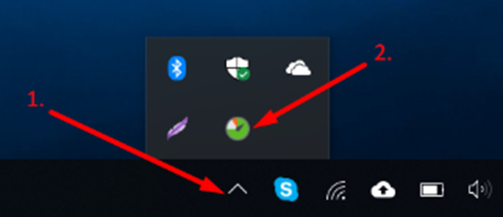
- After logging in, you will see the DeskTime icon appear in the system tray by clicking the
 icon located on the bottom right of the screen, near the date & time.
Change Password
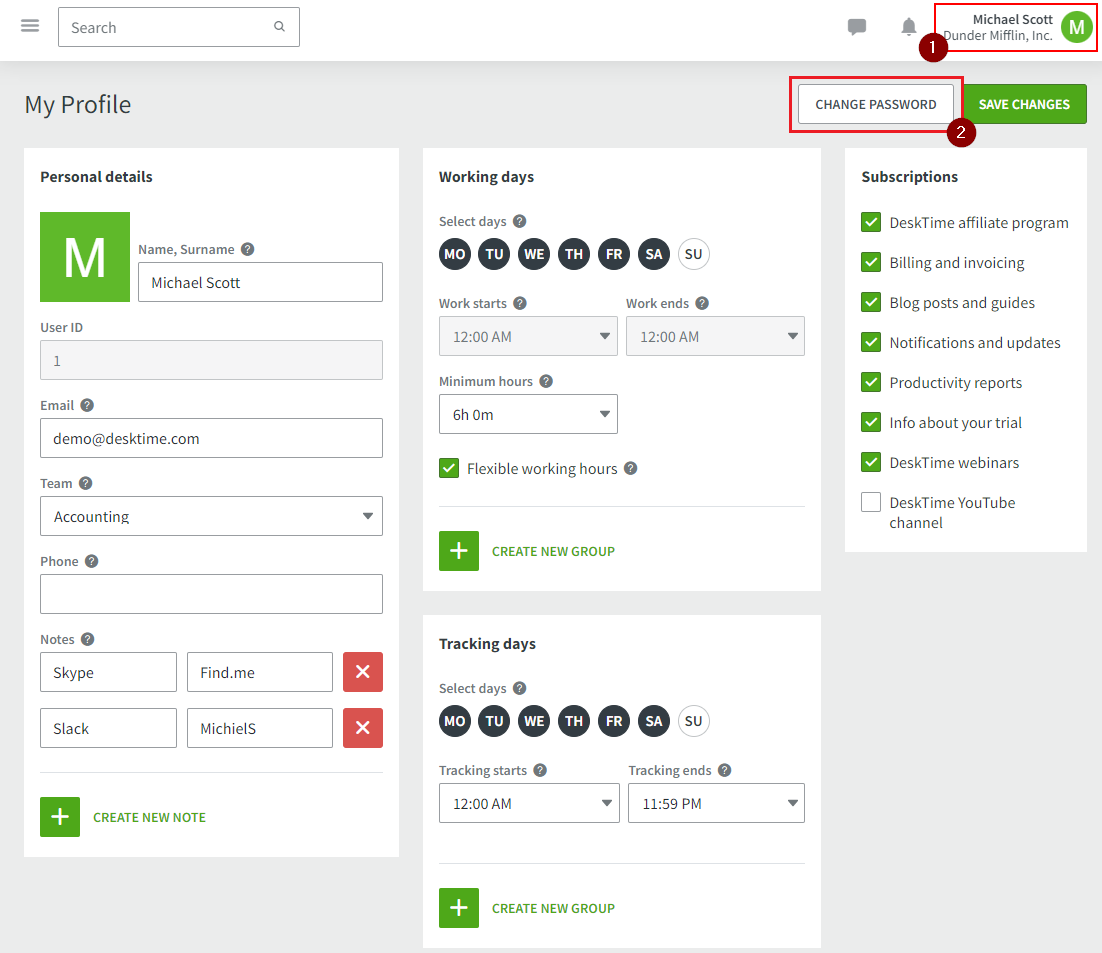
- With the DeskTime application opened, click on the Profile icon at the top right corner of the window.
- Select Change Password.
Enable/Disable Private Time
Note: Enabling Private time will stop tracking of anything you do on the computer. Private Time cannot be edited.
- Click the icon located on the bottom right of the screen, near the date & time.
- Right click on the
 icon and press Private Time to enable (stop tracking).
 - Right click on the icon and press Private Time again to disable (start tracking).
Set Private Time Reminders
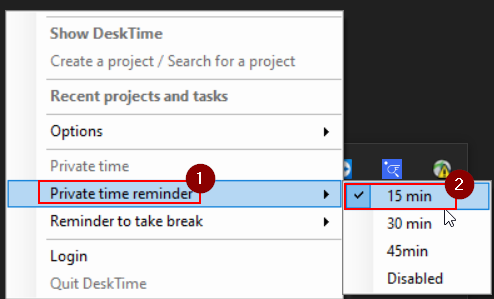
- Right click on the DeskTime icon from the system tray and hover over Private Time Reminder.
- Then select a time you wish to have a reminder set for Private Time.
Set Break Time Reminders
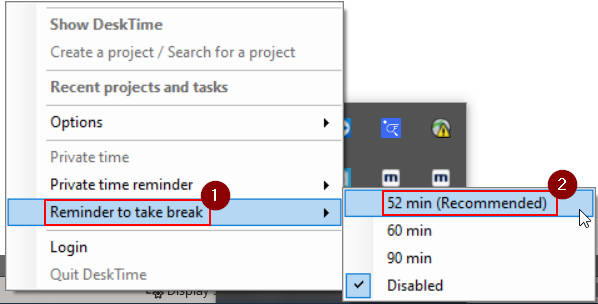
- Right click on the DeskTime icon from the system tray and hover over Reminder To Take Break.
- Then select a time you wish to have a reminder set for this break.
Questions? Contact Us!
IT Support Desk


Hours - 8:00AM - 6:00PM EST
Email - [email protected]
Phone - (330) 849-6699*
*For Emergency Assistance please use option 8

