



 85
85
About VPN
- If working remotely, you are required to connect to the VPN to connect to any R&A program.
- Access will not be available to the following without VPN:
- Outlook - Emails, Calendar and Contacts
- iManage - Client Matters
- PS|SHIP - Firm Shipping Service
- Intranet - Firm Information
- Other Firm Websites (EWork, Webview, etc.)
Connecting to the VPN
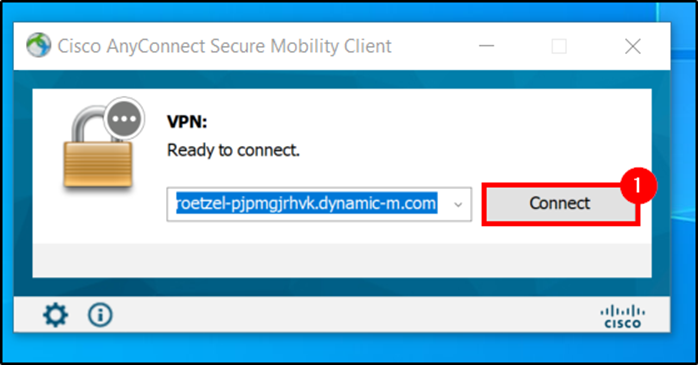
Open Cisco AnyConnect Mobility on your computer. If you are not seeing this option, search for Cisco Secure Client.
roetzel-pjpmgjrhvk.dynamic-m.com
1. Once the application, click Connect.
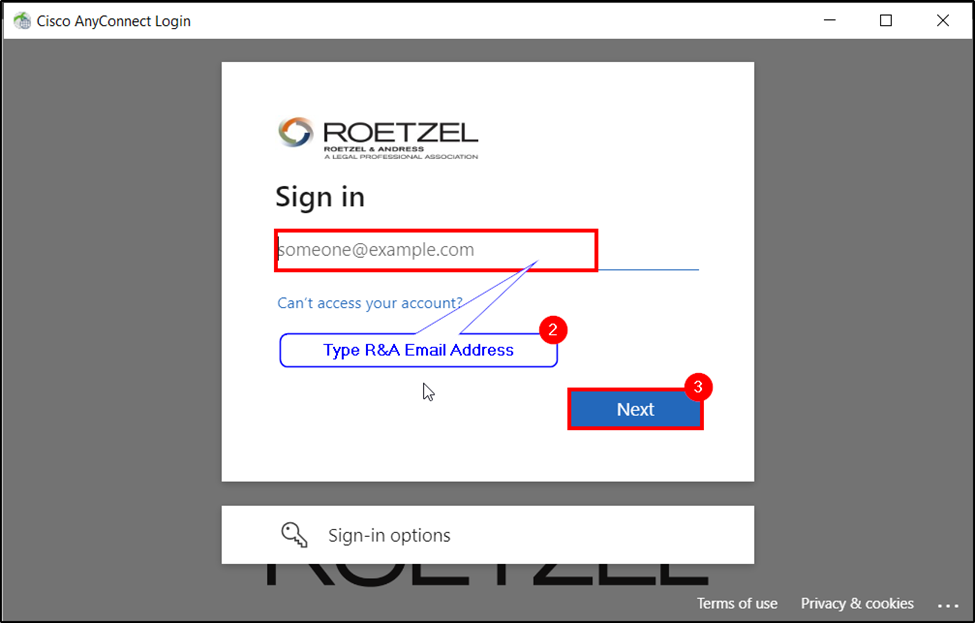
2. A new window will appear. Enter in your R&A Email Address.
3. Click Next.
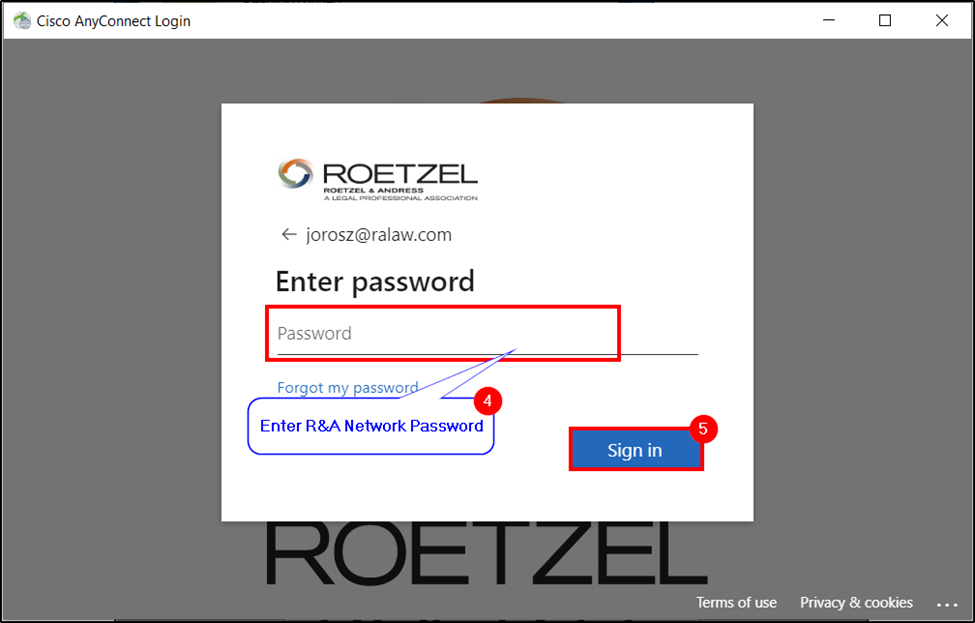
4. Enter your R&A Network Password.
5. Click Sign In.
6. A randomly generated number will appear on-screen. Enter that number into your Microsoft Authenticator app.
7. Tap Yes.
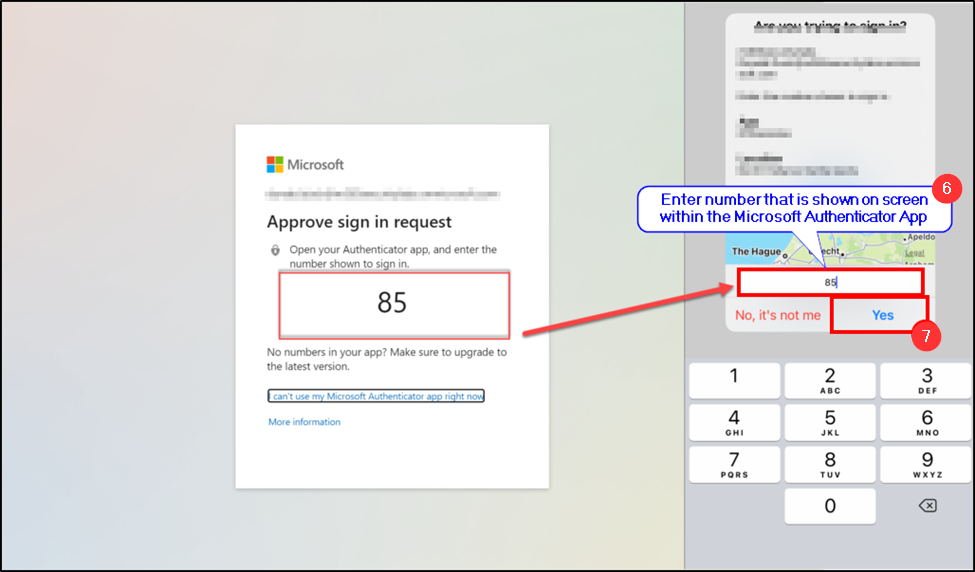
8. After verifying your identity, you can click Yes.
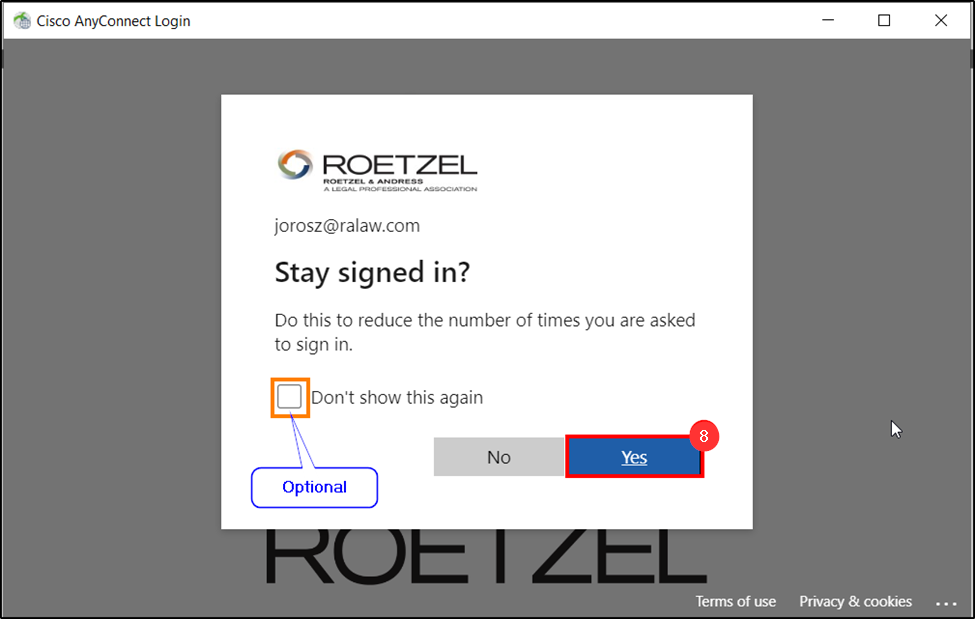
9. The window will disappear and will connect to the VPN.
Disconnecting from the VPN
1. Click the  icon located on the bottom right of the screen, near the date & time.
2. Right click on the Cisco AnyConnect Icon  .
.
3. Click Disconnect.
Questions? Contact Us!
IT Support Desk


Hours - 8:00AM - 6:00PM EST
Email - [email protected]
Phone - (330) 849-6699*
*For Emergency Assistance please use option 8

