


DocID - Inserting, Updating, Removing Document IDs in Word

Apr 02, 2024
 211
211
About DocID
The Microsystems DocID tool is designed to insert, and keep updated, the iManage document number into your documents.
This guide will explain how the tool works, what the initial settings are, and how to change your preferences.
Inserting a DocID
- In a new document, each time you save a new document into iManage, you’ll be prompted to insert the DocID with the dialog box below.
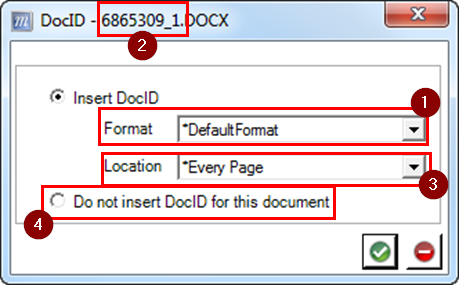
- The DefaultFormat includes the document number and version number in the format
- In this example, 6865309_1 is the documentID_verisonNumber. Use the drop-down list to choose With C/M, which includes the Client-Matter number (6865308 v1 999999/9999).
- The Location is set by default to Every Page. The ID will be placed at the left margin of the footer on every page. The drop-down list includes options such as Skip First Page, at Cursor Location, End of Document, and more.
- Make your Format & Location choices, or select Do not insert DocID for this document, and click the green check mark to close the prompt.
Updating the DocID
- This ID will automatically update if you save the document as a new version or with a new number. You don’t have to do anything.
Removing a Legacy DocID
On documents that were created before Microsystems’s tool was introduced, a different program may have been used to insert a DocID.
- Go to the DocID tab and click the Legacy DocID Removal button.
- Click the Insert DocID button.
Q: How do I know which tool inserted the existing DocID?
- Check your DocID tab. If you see an Insert DocID button, and there is an ID already in the document, the old tool was used to add it.
- If you see a Change Format button, it was inserted using the current program.
Changing Settings to Fit Personal Preferences
- All preferences are set using the Change Default Options button on the DocID tab.
- This opens the DocID Options dialog box.
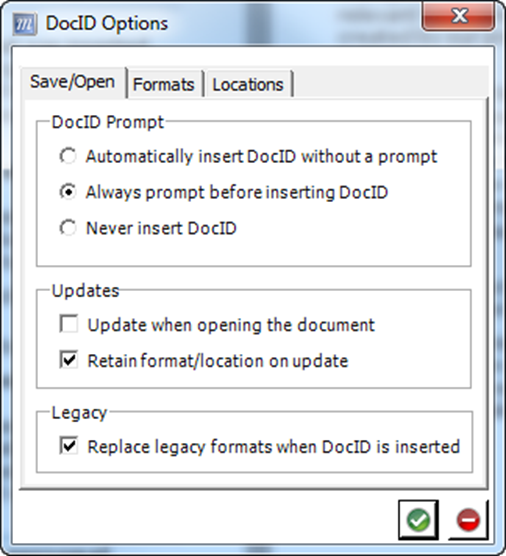
- To change Prompt Behavior:
- On the Save/Open tab, make your selection in the DocID Prompt section. You can choose to Automatically insert without a prompt, Always prompt before inserting a DocID, or Never insert a DocID.
- The Updates section includes an option to update the DocID when opening a document. This would most likely happen in a situation where you received a document by email and saved it to iManage directly from Outlook (without opening the attachment). With this option checked, the next time you open the document, the DocID would be updated.
- The option to replace a legacy format is not relevant here; this tool will not remove IDs created by our previous tool.
- To change Format:
- On the Formats tab, select DefaultFormat (this includes the document & version numbers – see the bottom of this page for an example) or With C/M, which adds the client-matter number. You may also use the Append Date/Time check box to have a time stamp added to your default DocID. Click Set as Default.
- To change Location:
- On the Locations tab, select your preferred location from the list and click Set as Default. When you are finished setting your default options, click the green check mark to close the dialog box. The red button is a Cancel button; it will close the dialog box without saving your changes.
Questions? Contact Us!
IT Support Desk


Hours - 8:00AM - 6:00PM EST
Email - [email protected]
Phone - (330) 849-6699*
*For Emergency Assistance please use option 8

