



 68
68
Installing and Signing into DialPad on iPhone/Android
1. Open the App Store or Google Play Store and search for Dialpad.
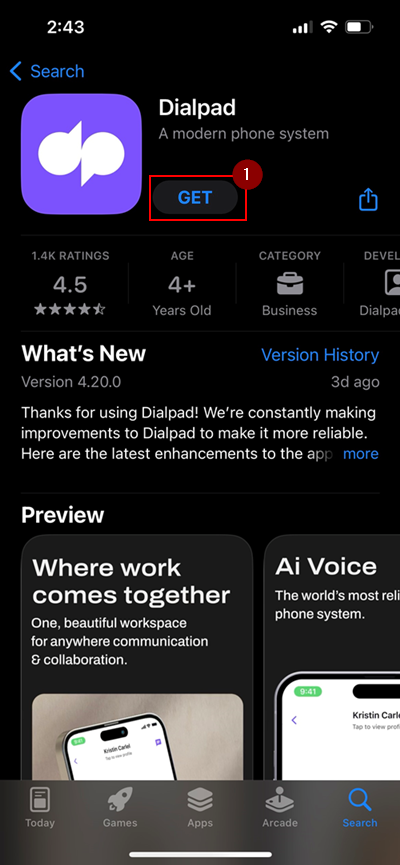
2. One installed, open the DialPad app.
3. Tap Start Making Calls.
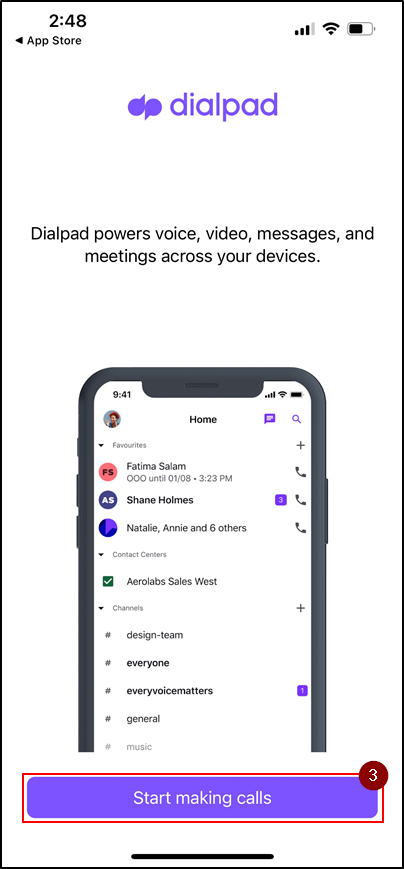
4. Tap Login with Office 365.
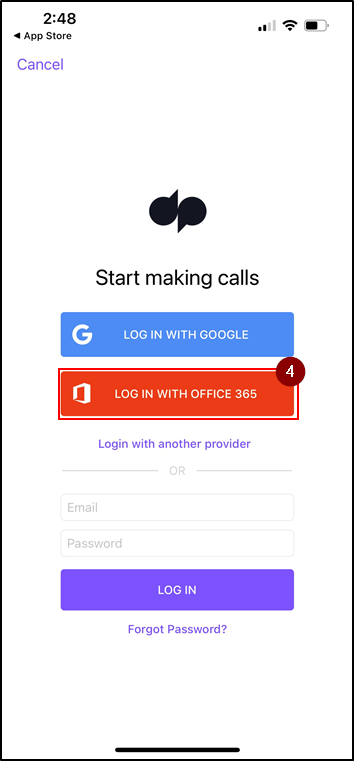
5. Tap Continue.
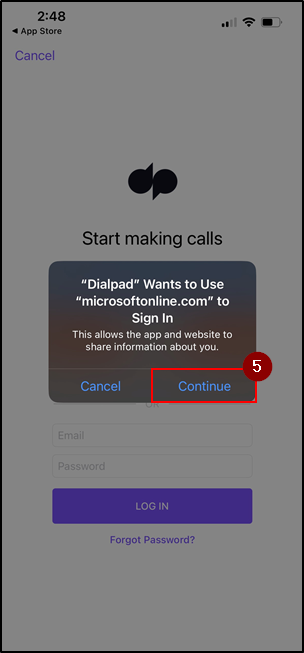
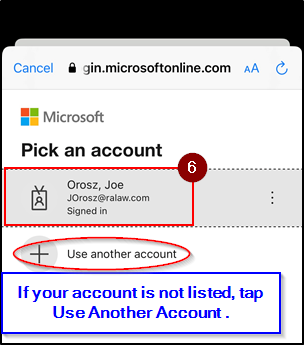
6. Tap your R&A Email account, if listed.
Note: If you do not see your email listed, tap User Another Account and use your R&A email and Network Password.
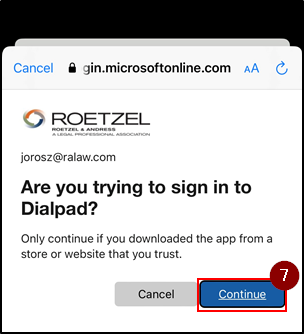
7. A prompt will appear. Tap Continue.
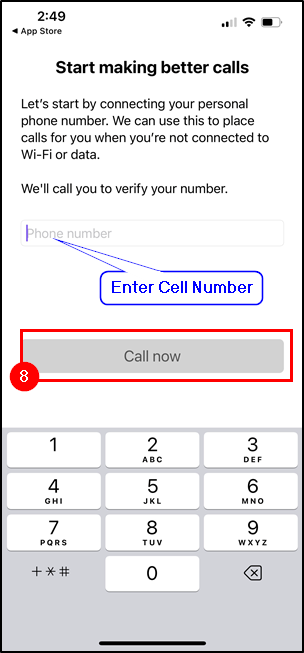
8. Enter in your cell number NOT your DialPad Number. This enables HD Calling (Calls from Wi-Fi). If you do not wish to use this, press skip instead.
Once you have tapped Call Now, it will then give you a call and press 1 to enable this feature.
9. Tap Next.
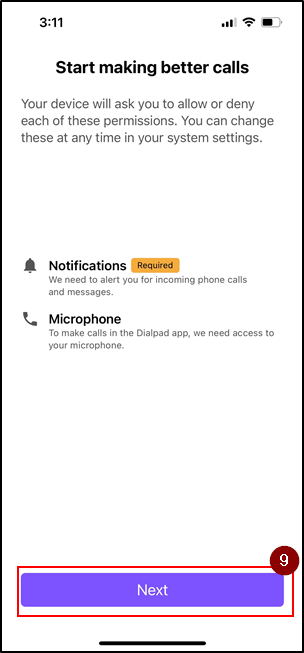
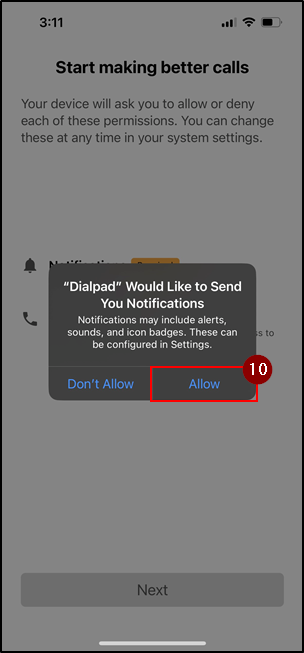
10. Tap Allow to allow notifications from DialPad.
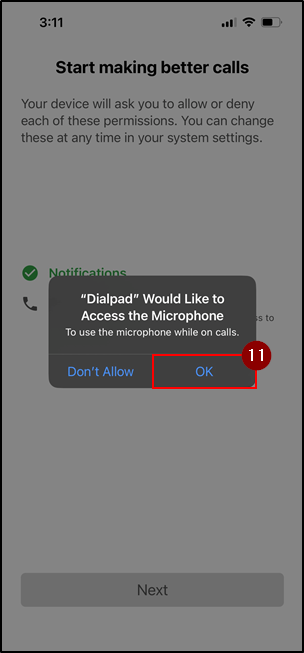
11. Tap Next, then Tap Ok to allow DialPad to use your Microphone.
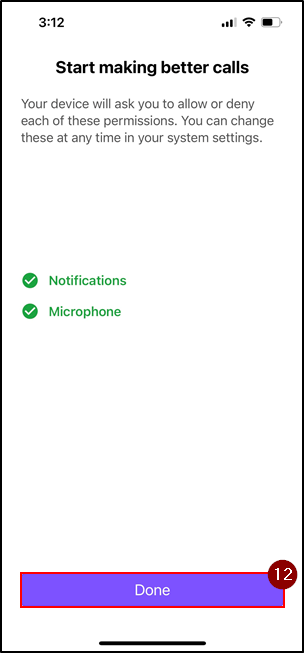
12. Tap Done to finish the setup process.
Questions? Contact Us!
IT Support Desk


Hours - 8:00AM - 6:00PM EST
Email - [email protected]
Phone - (330) 849-6699*
*For Emergency Assistance please use option 8

