



 44
44
Placing a DialPad Call on iPhone/Android
Option 1: Dialing a Number
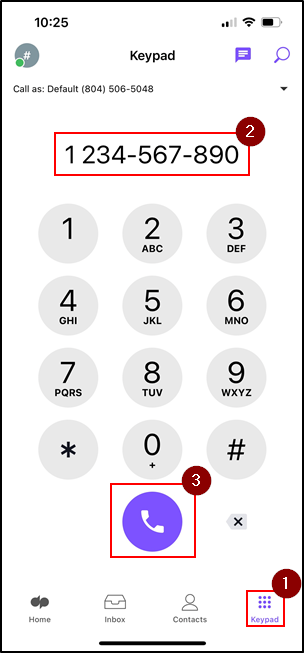
1. Tap the Keypad button on the bottom of the app to open up the standard phone.
2. Dial In the number.
3. Press the Phone button to place a call.
Option 2: Search for a Contact to Call
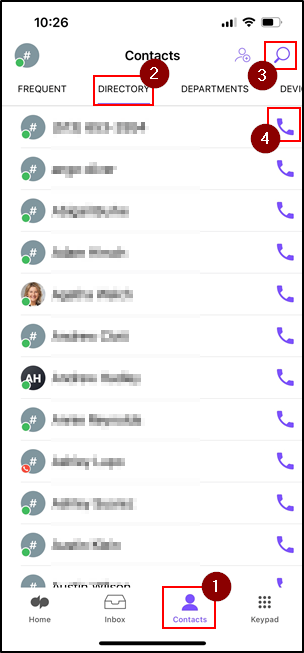
1. Tap the Contacts button on the bottom of the app to show your list of contacts.
2. Tap the Directory tab.
3. Either scroll through the contacts to find a person, or tap the Search button and type in a name of a contact.
4. Press the Phone button to place a call to that specific contact.
Receiving a DialPad Call on iPhone/Android
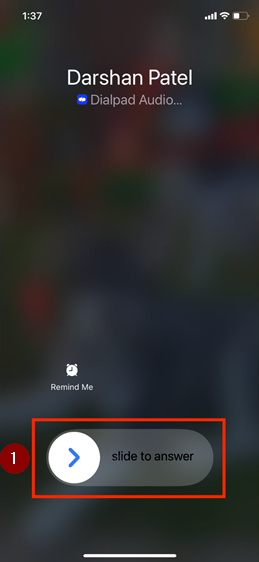
1. A call from DialPad will look similar to a regular cell phone call. Swipe to answer the call.
Transferring a DialPad Call on iPhone/Android
1. While on an active call, tap the More button.
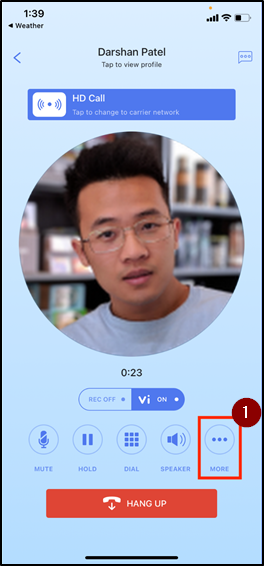
2. Tap Transfer.
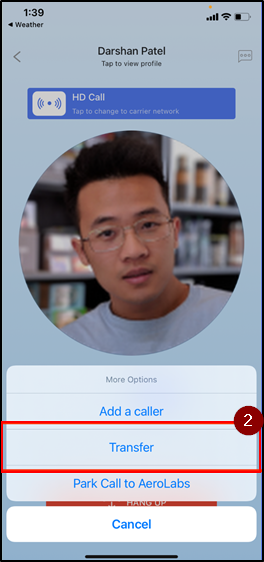
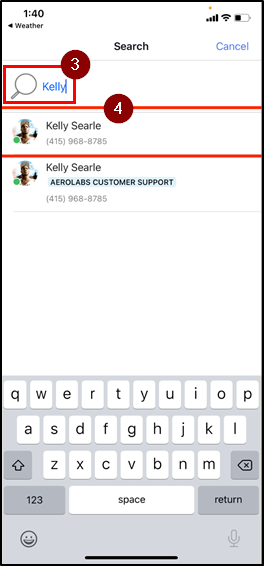
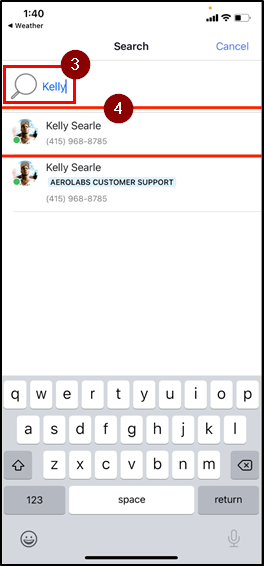
3. Type/Search for the contact to transfer the call to
4. Then Tap the result to transfer the call to the contact.
Adding Caller From DialPad on iPhone/Android
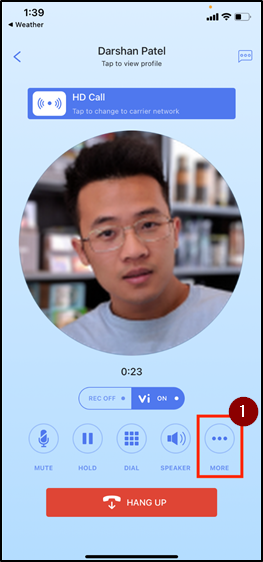
1. While on an active call, tap the More button.
2. Tap Add a Caller.
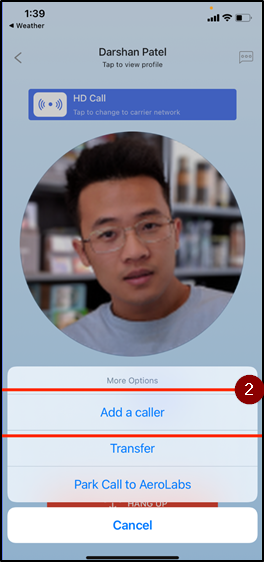
3. Type in a number or contact name.
4. Then Tap the result to add the contact to the call.
Questions? Contact Us!
IT Support Desk


Hours - 8:00AM - 6:00PM EST
Email - [email protected]
Phone - (330) 849-6699*
For Emergency Assistance please use option 8

