



 136
136
Record Voicemail Greeting for DialPad
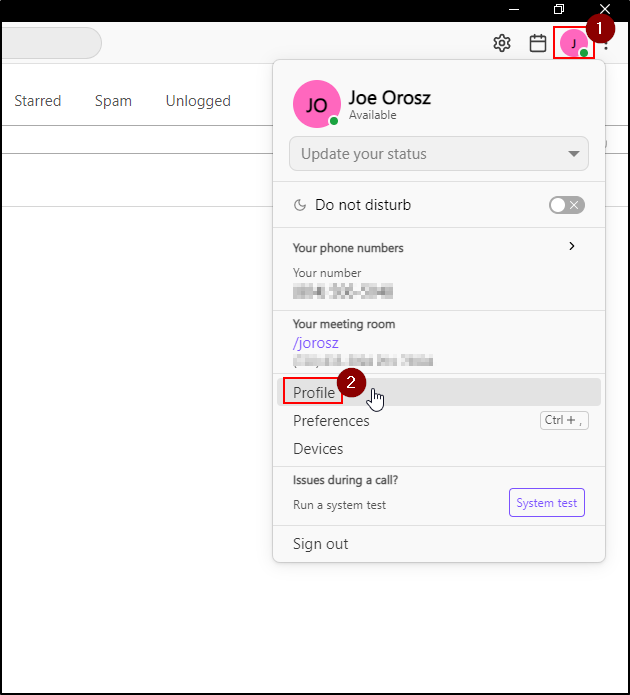
1. Launch the Dialpad app on your computer and click on the Profile Icon on the top right-hand corner.
2. From the list of options, click Profile.
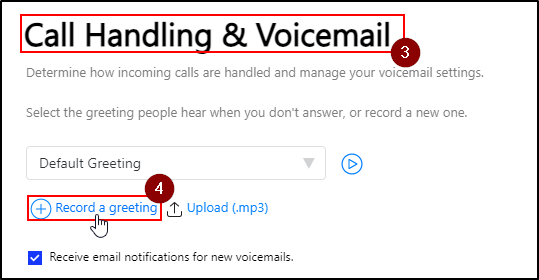
3. Scroll down and click on Call Handling & Voicemail.
4. Click on Record a Greeting.
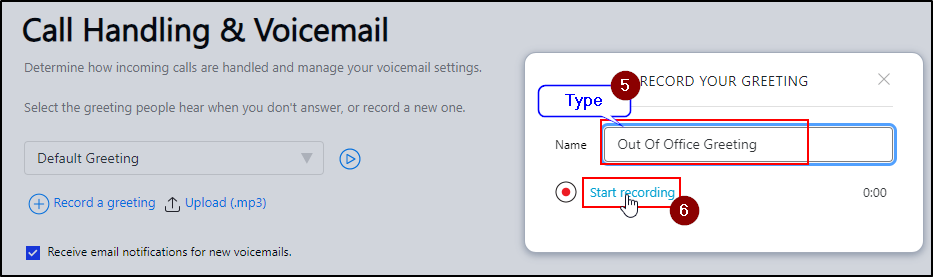
5. Fill in the Name Field (i.e - Out-Of-Office Greeting).
6. Click on Start Recording.
Note: You may receive a pop-up to enable your microphone on your computer. Click Allow.
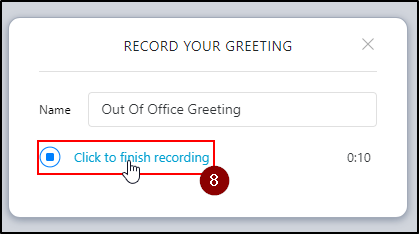
7. Once you hear the tone, record your greeting.
8. Once your greeting has been stated, click Finish Recording.
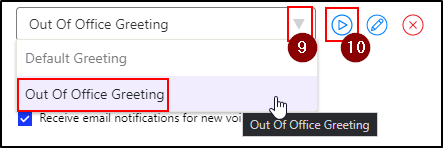
9. To listen to the recording click on the drop-down menu, select a greeting.
10. Click on the Play icon.
Optional:
Click on the red X to delete a recording.
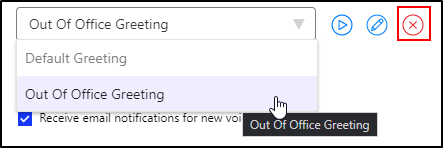
You can also record multiple voicemails: click on the drop-down menu to select one.
Questions? Contact Us!
IT Support Desk


Hours - 8:00AM - 6:00PM EST
Email - [email protected]
Phone - (330) 849-6699*
*For Emergency Assistance please use option 8

