



 47
47
Scanning Documents to PDF on iPhone & iPad - Notes App
1. Open the Notes app.
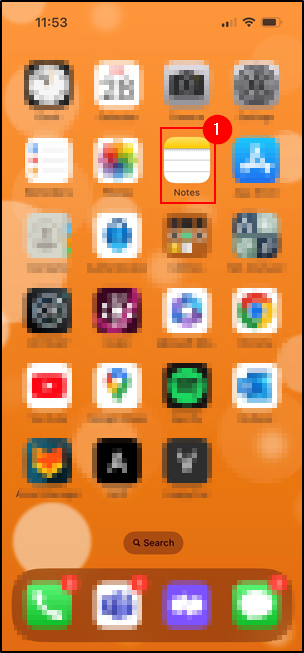
2. Tap the New Note icon.
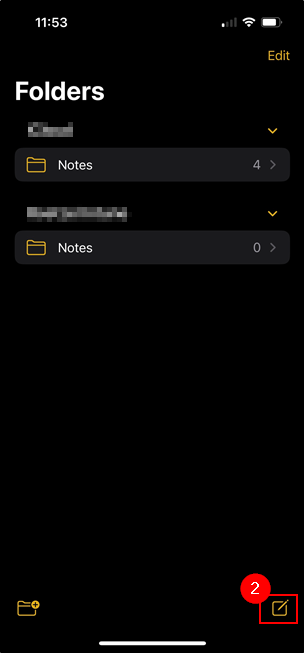
3. While in the note, tap the Camera icon.
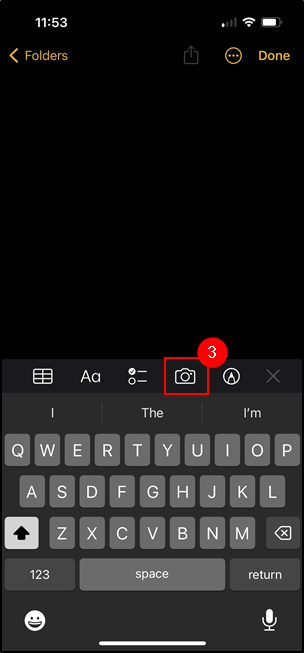
4. Tap Scan Documents.
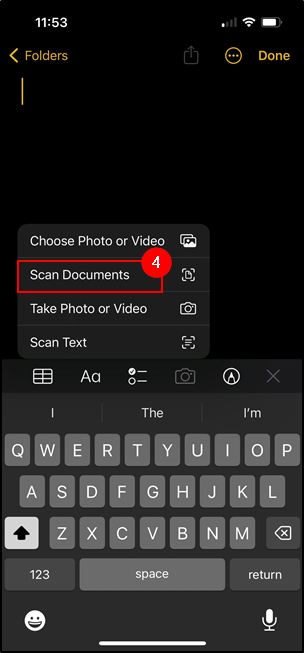
5. In a well lit room, hover over the document you are scanning and it will highlight the document in yellow and tap the button to scan it.
Repeat this step if you need to scan more than one document.
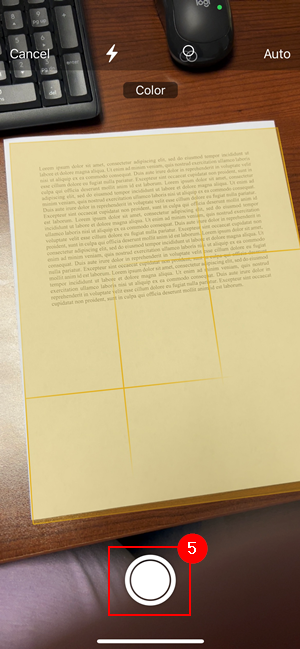
6. Once scanned, you can view the scan document(s) by tapping the image of the document on the bottom left.
7. If the documents look presentable, tap Save.

8. It will then place the scanned documents as an image/PDF in the note.
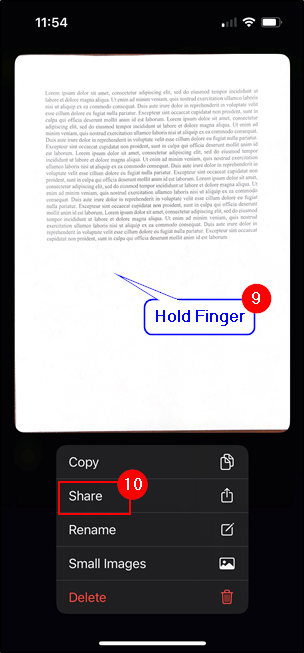
9. To export these documents, hold down a finger on a document.
10. Tap Share.
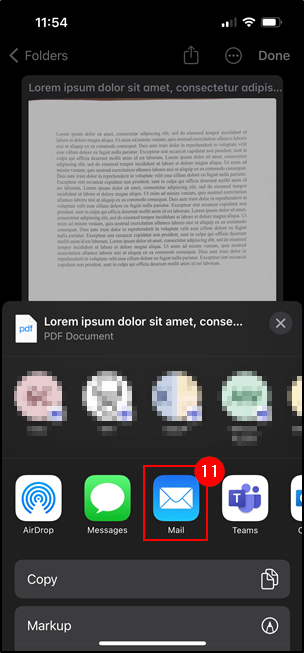
11. If you wish to include these in an email, select the Mail app. It will attach the document as a PDF format.
Questions? Contact Us!
IT Support Desk


Hours - 8:00AM - 6:00PM EST
Email - [email protected]
Phone - (330) 849-6699*
*For Emergency Assistance please use option 8

