



 85
85
About EasyFolders
- EasyFolders allow users to create subfolders within matters, under the default folders
- i.e - A Discovery folder when the matter was made can have subfolders to help better organize different types of Discovery
- Users must have permission based on the security of the matter in order to make these folders.
Creating a SubFolder using EasyFolders
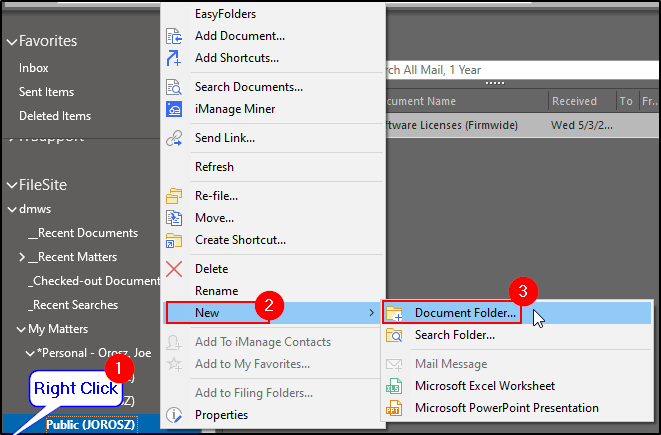
1. While in a Client Matter in Outlook, right click on a matter folder.
2. Hover over New.
3. Choose Document Folder.
***If EasyFolders is now shown at the top or "new Folder" option is grayed out, you most likely need to re-install the app.
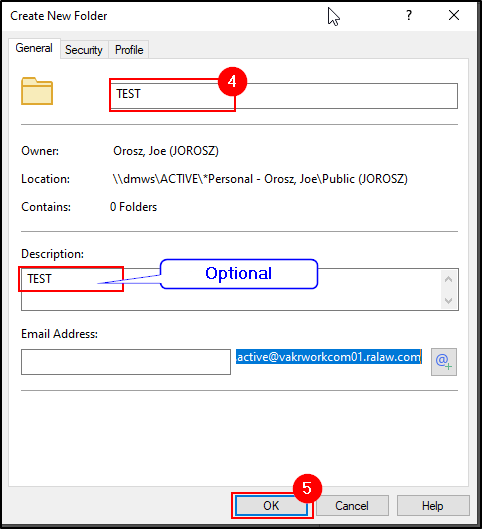
4. A window will appear. Enter in the Name of the subfolder. You can also enter in a Description (optional).
5. Click OK.
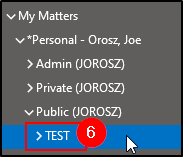
6. You will now see that a subfolder is listed under the matter folder.
Deleting a SubFolder using EasyFolders
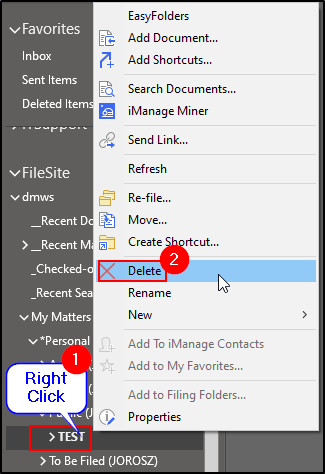
1. While in a Client Matter in Outlook, right click on a matter folder.
2. Click Delete.
Note: Deleting this subfolder will delete this for everyone that uses this matter. Delete with caution.
Questions? Contact Us!
IT Support Desk


Hours - 8:00AM - 6:00PM EST
Email - [email protected]
Phone - (330) 849-6699*
*For Emergency Assistance please use option 8

