



 38
38
Inserting WorkSite Hyperlinks
1. Open the document (e.g., Pleadings Index) in which you want to insert the hyperlink (e.g., Filed Documents).
2. Place the cursor where you want to insert the hyperlink, or select the text you want to hyperlink.
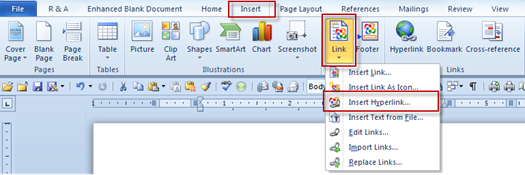
3. Click the Insert tab, then Click Link > Insert Hyperlink.
4. Search for the document you want to insert as a hyperlink.
Note: You can hyperlink any version of the document. Click the Latest button drop-down arrow to display the following options:
- Latest - Inserts a hyperlink that will always point to the most current version of the document to which you have access rights.
- This Version - Inserts a hyperlink that will always point to the selected version of the document.
5. When you select either version option, the Insert WorkSite Hyperlink dialog box appears.
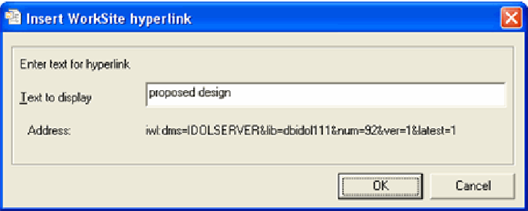
6. If you selected the text you want to hyperlink in Step 2, the text appears in the Text to display field or you can type the hyperlink text to be displayed.
7. Click OK. The hyperlink to the document appears.
Accessing WorkSite Hyperlinks
1. Hover over the hyperlink to display the linked document’s properties in a tooltip. Select the CTRLkey+click to open the linked document in its native application.
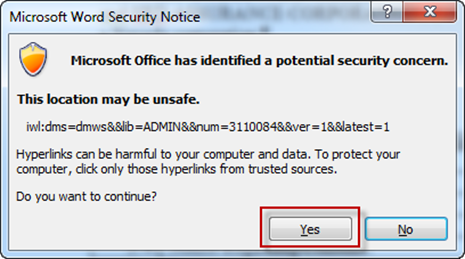
2. Click Yes at the Security Notice.
Questions? Contact Us!
IT Support Desk


Hours - 8:00AM - 6:00PM EST
Email - [email protected]
Phone - (330) 849-6699*
*For Emergency Assistance please use option 8

