



 62
62
1. Download/Open the Microsoft Lens app (it will show a camera view).
2. Press confirm when the borders line up, pulling the phone further from the document can help focus.
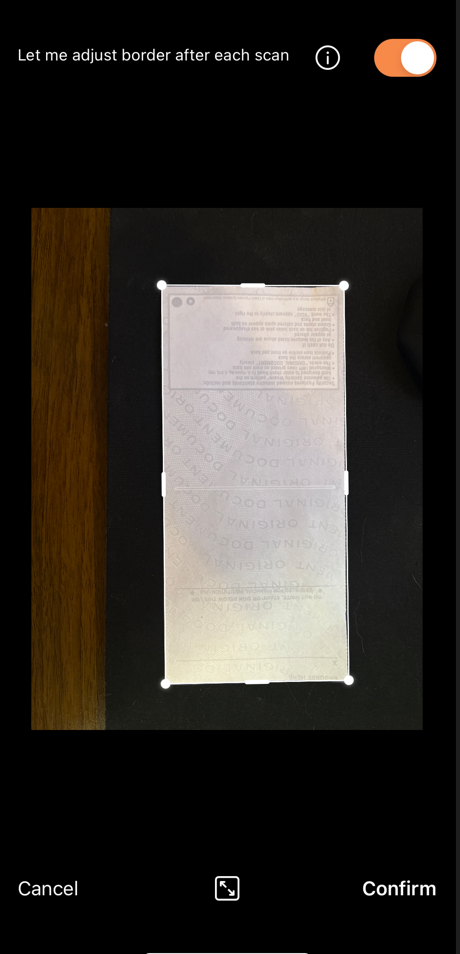
3. Here you can modify the border and highlight and draw if needed. Press Done when completed or Add to scan another page.
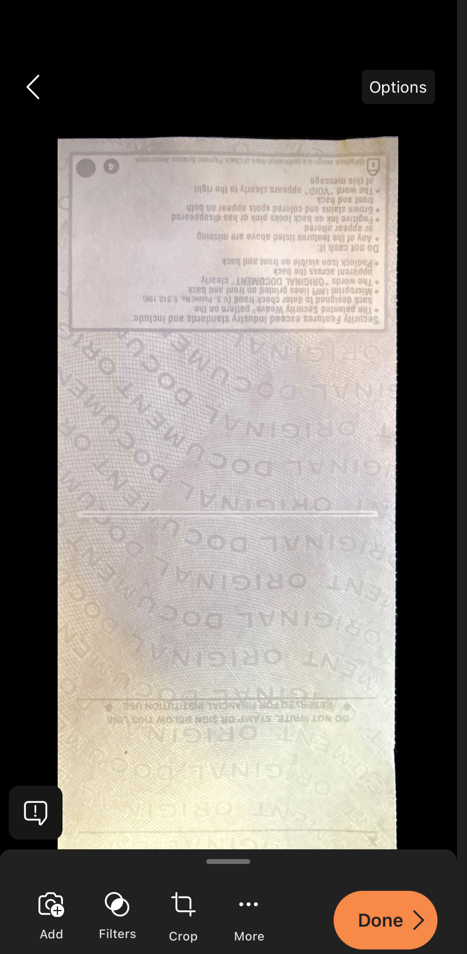
4. Select PDF here to ensure the document is converted. Sending an email here would send a picture file, it can be converted after by IT.
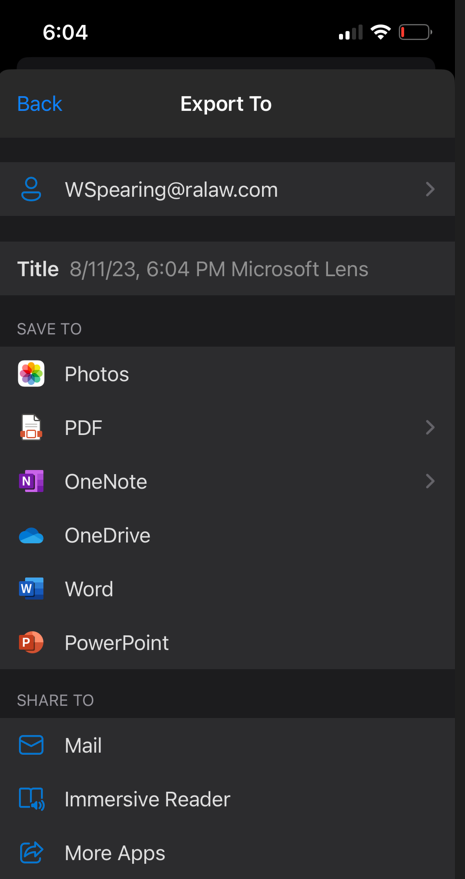
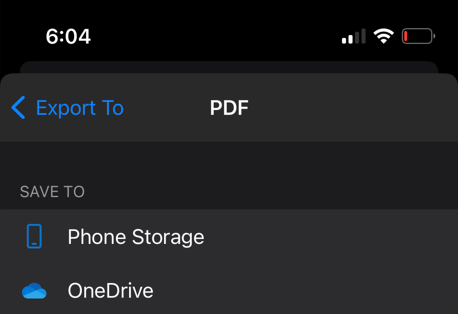
5. In this example, we will save to local phone storage.
6. The document is converted, select the scanned document(s) stack you wish to send.
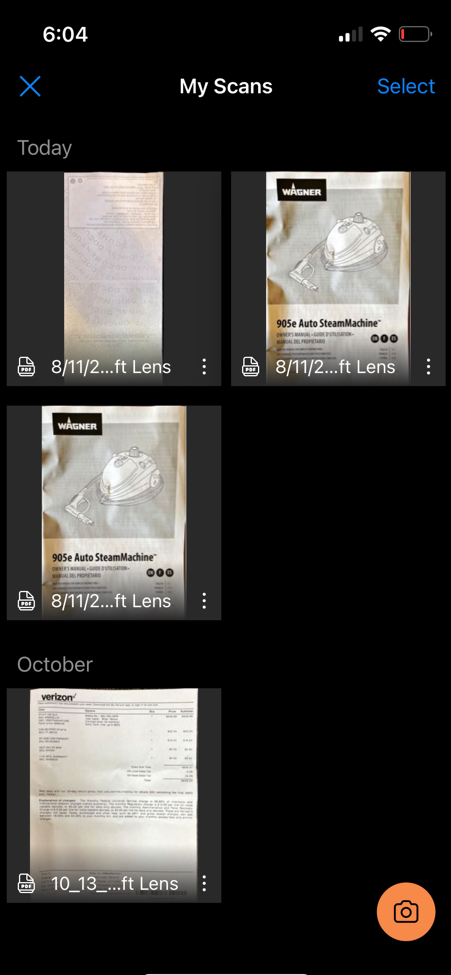
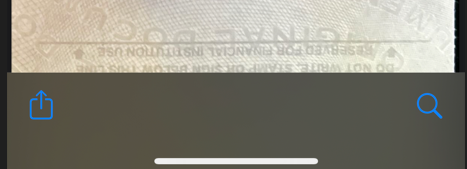
7. Select the upload icon in the lower left corner to send as email
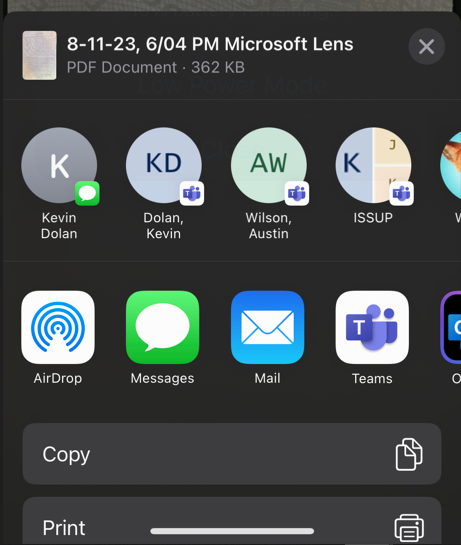
8. Select the email app and the item will be attached and the recipients name can be typed in.
Questions? Contact Us!
IT Support Desk


Hours - 8:00AM - 6:00PM EST
Email - [email protected]
Phone - (330) 849-6699*
*For Emergency Assistance please use option 8

