



 501
501
About Managing Senders in Mimecast
- Mimecast is a email security tool that will scan email and detect spam.
- Every so often, you may encounter an spam email that should be blocked, or an email you should have recieved.
- Permitted Senders will ensure all emails will have clearance through Mimecast.
- Blocked Senders will prevent any and all emails from an email address by Mimecast.
Permitting Senders in Mimecast
1. Click the Mimecast tab.
2. Click Managed Senders.
3. Select Managed Senders dropdown.
4. Select Permitted.
5. Click Add Permitted.
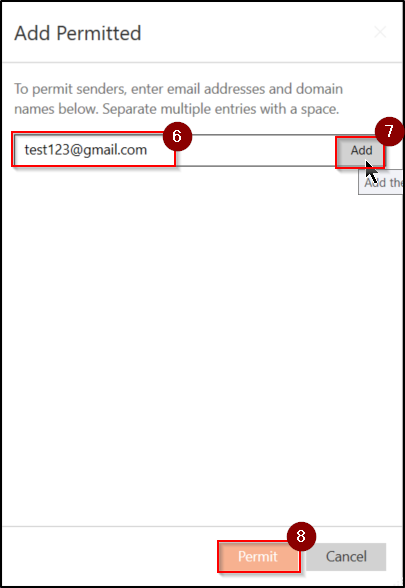
6. Type in email address(es) you wish to always permit.
7. Click Add after typing each one.
8. Once you finished entering in all email address(es), click Permit.
Block Senders in Mimecast
1. Click the Mimecast tab.
2. Click Managed Senders.
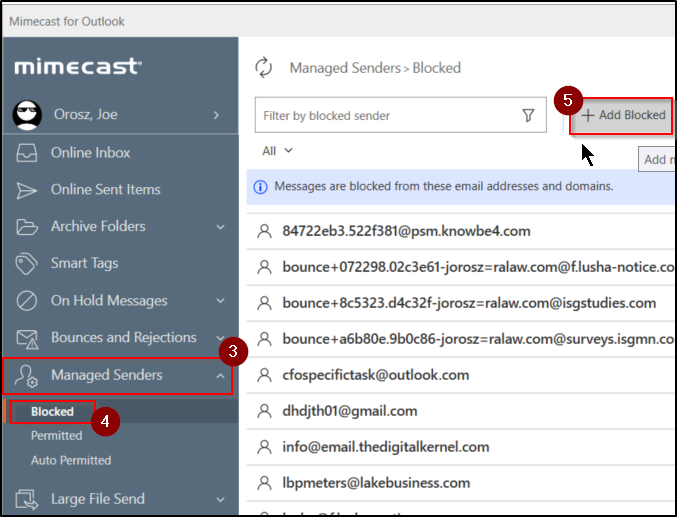
3. Select Managed Senders dropdown.
4. Select Blocked.
5. Click Add Blocked.
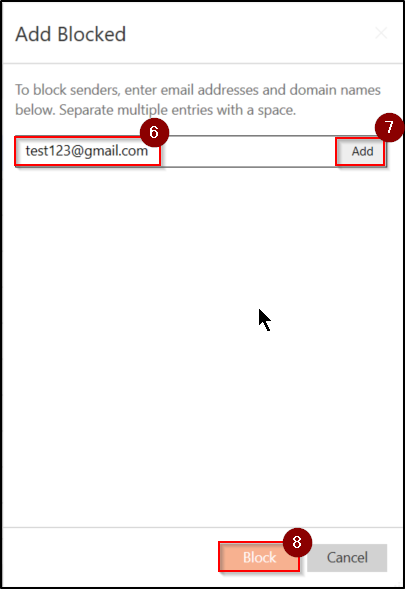
6. Type in email address(es) you wish to always block.
7. Click Add after typing each one.
8. Once you finished entering in all email address(es), click Block.
Modify Blocked Senders in Mimecast
1. Click the Mimecast tab.
2. Click Managed Senders.

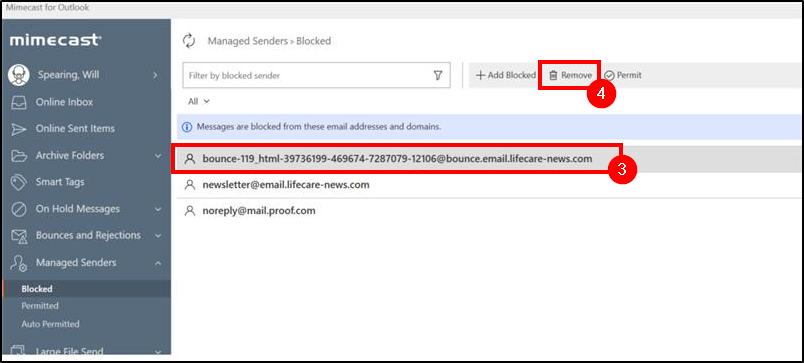
3. Left click to select the sender or Domain you want to remove.
4. Select the Remove option when it is highlighted.
i. A sender is "[email protected]" a domain is ANYTHING from @gmail.com will be blocked.
4. Close Mimecast window when complete.
Questions? Contact Us!
IT Support Desk


Hours - 8:00AM - 6:00PM EST
Email - [email protected]
Phone - (330) 849-6699*
*For Emergency Assistance please use option 8

