



 214
214
About Personal Workspaces
- Personal Workspaces in iManage provide a great area for storing documentation before they are filed into a client matter.
- Each user at Roetzel is assigned a Personal Workspace with 4 different subfolders:
- Admin - A Private subfolder intended for administrative needs (Expenses, HR-Related Items, etc.)
- Private - A Private subfolder that only the owner of the personal workspace can view documentation in.
- Public - A Public subfolder that anyone can view documentation in.
- ToBeFiled - A Public subfolder intended as a temporary holding place for documents that don't have an exact matter or purpose.
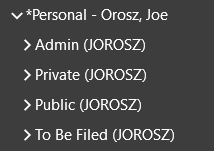
**Keep all sensitive documents in Admin and Private**
Adding a Personal Workspace to your MyMatters
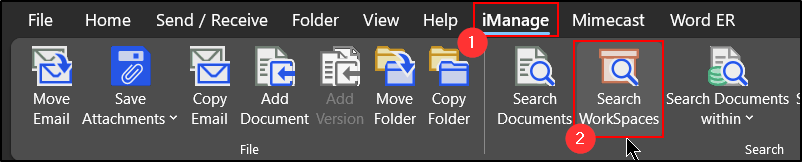
1. Open Outlook on your computer and go to the iManage tab.
2. Click Search Workspaces.
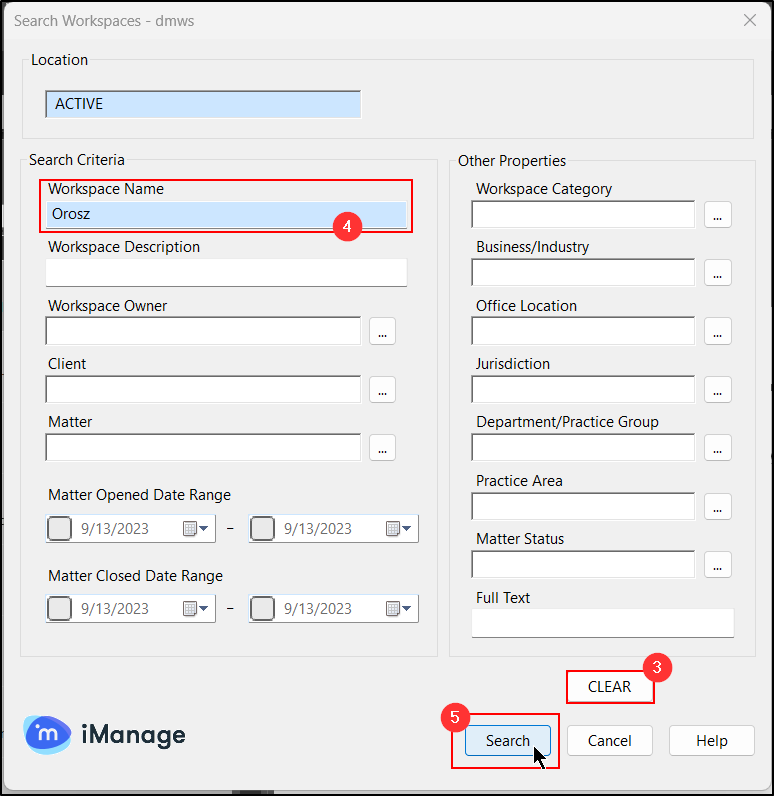
3. Clear all contents of the search popup.
4. Under the Workspace Name, type the last name of the Personal Workspace you wish to add (in this example, we are using Orosz to find Joe Orosz's Personal Workspace)
5. Click Search.
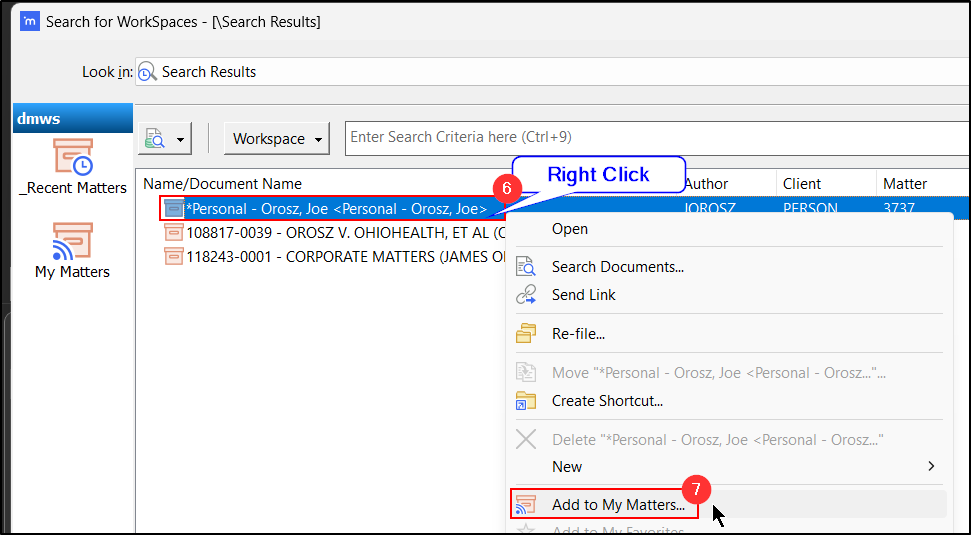
6. Within the search results, right click on the Personal Workspace you wish to add (all Personal Workspaces will have a * in front)
7. Select Add to MyMatters. (If you get an error, it may be that you already have the Personal Workspace in your MyMatters. If you do not believe so, please contact IT.)
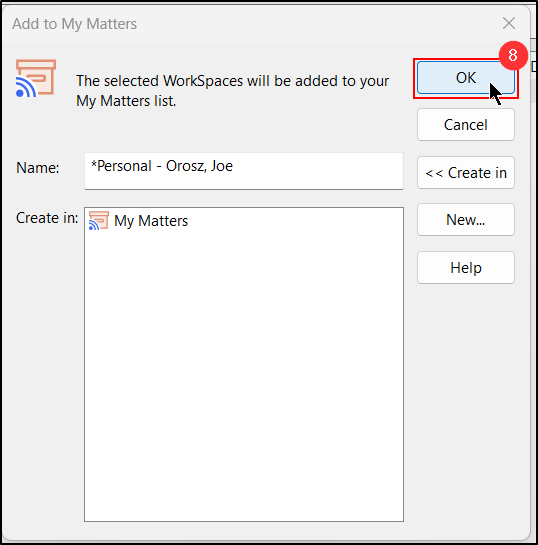
8. Click OK.
Removing a Personal Workspace from your MyMatters
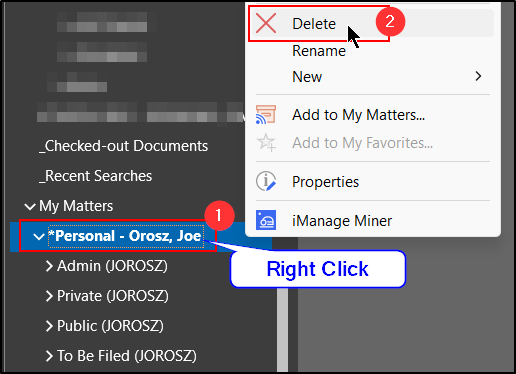
1. Expand your MyMatter list and right click on the Personal Workspace you wish to remove.
2. Select Delete. (This is not actually deleting it, just removing your view of it.)
Questions? Contact Us!
IT Support Desk


Hours - 8:00AM - 6:00PM EST
Email - [email protected]
Phone - (330) 849-6699*
*For Emergency Assistance please use option 8

