


Outlook - Adding Firmwide Contacts

Apr 02, 2024
 46
46
Adding Firmwide Contacts in Outlook
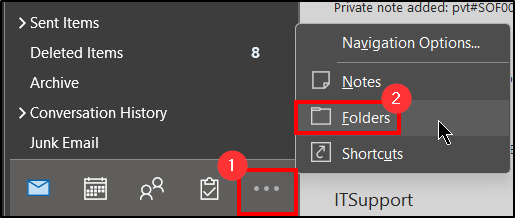
1. Open Outlook and click the ... near the bottom of the application.
2. Click Folders.
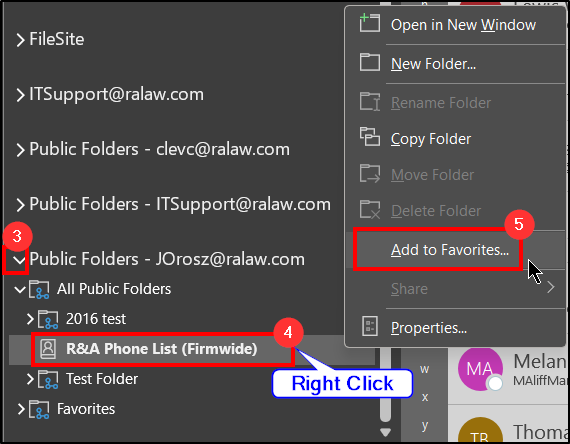
3. Expand the group "Public Folders - [email protected]"
4. Keep expanding the folders until you see "R&A Phone List (Firmwide)", then right click it.
5. Click "Add to Favorites...".
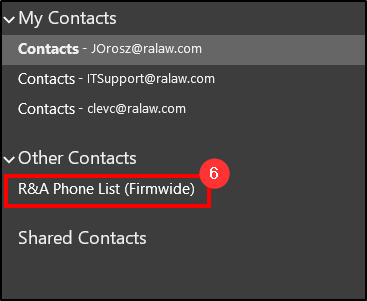
6. Go to Contacts and you should see it listed as a line item.
Questions? Contact Us!
IT Support Desk


Hours - 8:00AM - 6:00PM EST
Email - [email protected]
Phone - (330) 849-6699*
*For Emergency Assistance please use option 8

