



 87
87
Installing the iTimeKeep Mobile App
1. Go to the Play Store (Android) or App Store (Apple) and download the iTimeKeep app.

2. From the Login to Your Account prompt type in your username which is your Firm Email Address and tap Next.
3. Tap Continue.
4. Enter your Firm Email Address again and tap Next.
5. Enter your Network Password and tap Sign in.
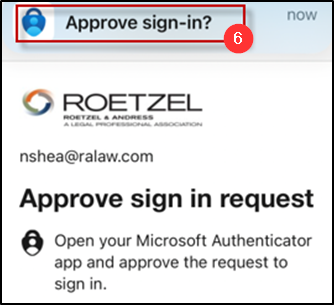
6. Tap the Authenticator app notification.
7. Tap Approve .
8. Tap the account that displays your name and email address and tap Continue.
9. Create a four digit PIN and press Enter twice.
10. Tap Send me a Verification Code.
11. You will receive an email with the verification code from [email protected] .
12. Enter the verification code and tap Verify my Code.
13. From the Get Notified prompt tap Sure.
14. Tap Allow.
New Firm Phone - Reinstall iTimekeep App
- Sometimes, the app will not properly carry over to a new phone, so it is best to reinstall from the app store.
- Follow the same steps above.
- If you forget your PIN for this app, also reinstall the app.
Questions? Contact Us!
IT Support Desk


Hours - 8:00AM - 6:00PM EST
Email - [email protected]
Phone - (330) 849-6699*
*For Emergency Assistance please use option 8

