


Outlook - Adding an Intranet Calendar

Apr 02, 2024
 74
74
Adding an Intranet Calendar to Outlook
NOTE: You must ensure the Intranet website is set for IE Mode for Microsoft Edge. Contact IT if you are not able to do Step 5.
1. Open Microsoft Edge.
2. Go to the Intranet website.
3. Login using your R&A Username (i.e JohnSmith) and your Network Password.
4. Go to the location of the calendar you wish to add.
5. Click Actions... and choose Connect to Outlook.
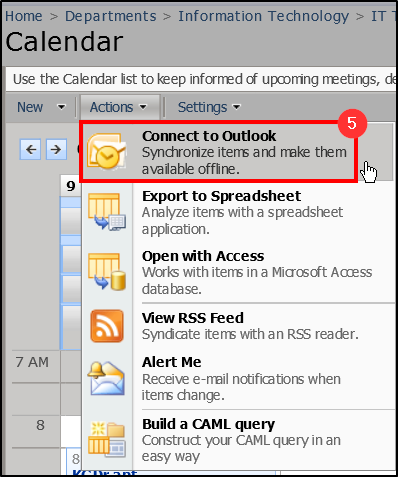
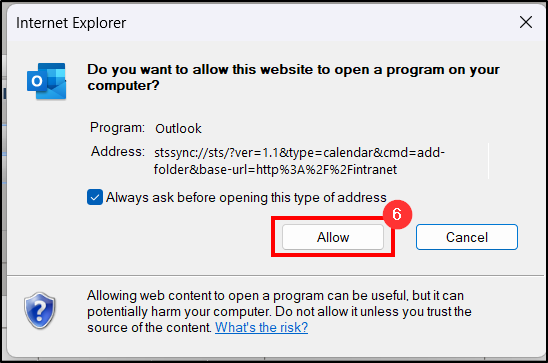
6. A pop-up will appear. Click Allow.
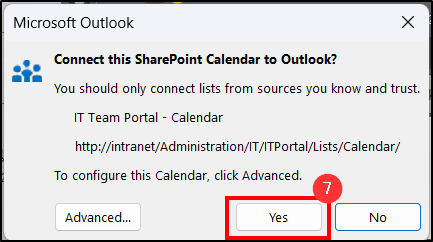
7. Another pop-up will appear. Click Yes.
8. You will now see that the calendar was successfully added to your list of Outlook Calendars.
Questions? Contact Us!
IT Support Desk


Hours - 8:00AM - 6:00PM EST
Email - [email protected]
Phone - (330) 849-6699*
*For Emergency Assistance please use option 8

