


iPhone - Copying photos to PC with USB cable

Jan 09, 2025
 85
85
iPhone - Copying photos to PC with USB cable
1. Plug your iPhone into the PC using the USB cable.
2. Click "Allow" for any access requests they may appear on screen.
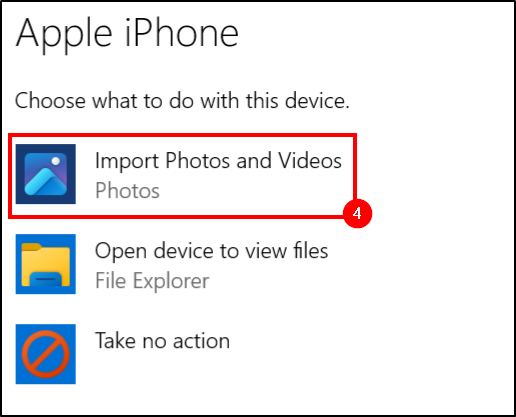
3. A notification will appear on the bottom right. Click the Autoplay option:

4. Choose import photos and videos.:
5. The Photos app on the computer will open. - Click "NO" to any prompts related to OneDrive.
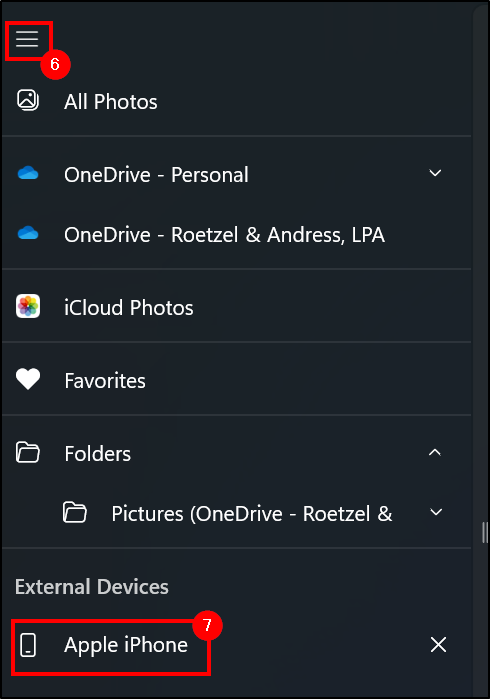
6. On the left pane, click the three lines.
7. Select the "Apple iPhone" at the bottom
Troubleshooting Ideas
- If photos cannot be read, unplug the USB cable from the phone, plug it back in and wait to accept any sharing prompts.
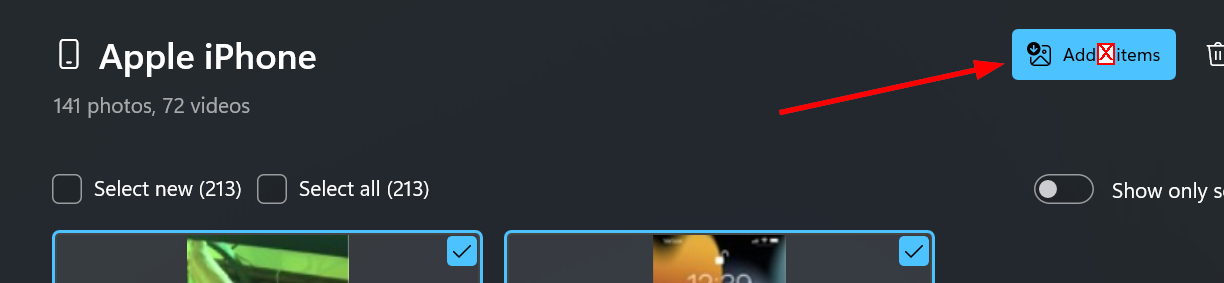
- Select the photos you want and click "Add <x> Items:
Questions? Contact Us!
IT Support Desk


Hours - 8:00AM - 6:00PM EST
Email - [email protected]
Phone - (330) 849-6699*
*For Emergency Assistance please use option 8

