



 56
56
About Dictalogic
- Dictalogic is the current software for attorneys and their assistants to create and complete verbal dictations.
- If you wish to obtain a license for this software, please contact IT Support.
The Author Role (Attorneys)
- The Author role is where a dictation or conversation can be assigned to either a Transcriber (legal assistant) or placed in a queue.
- The dictation can be sent as manual transcription – it’s a traditional dictation method where the transcriber listens to the audio and types the dictation using the keyboard and foot pedal.
Signing Into the Dictalogic Mobile App
- Go to the Apple App Store or Google Play Store and download the Dictalogic app.
- Once installed, launch the Dictalogic app.
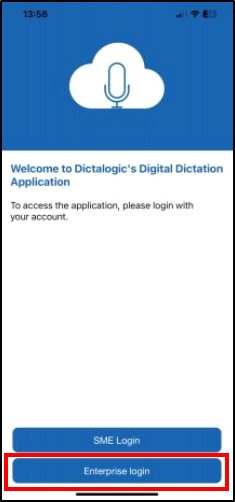
- Tap on the Enterprise Login button and proceed to enter your R&A Email and Network Password. Your Authenticator app may be required to fully sign-in.
Audio Recorder Instructions on Mobile App
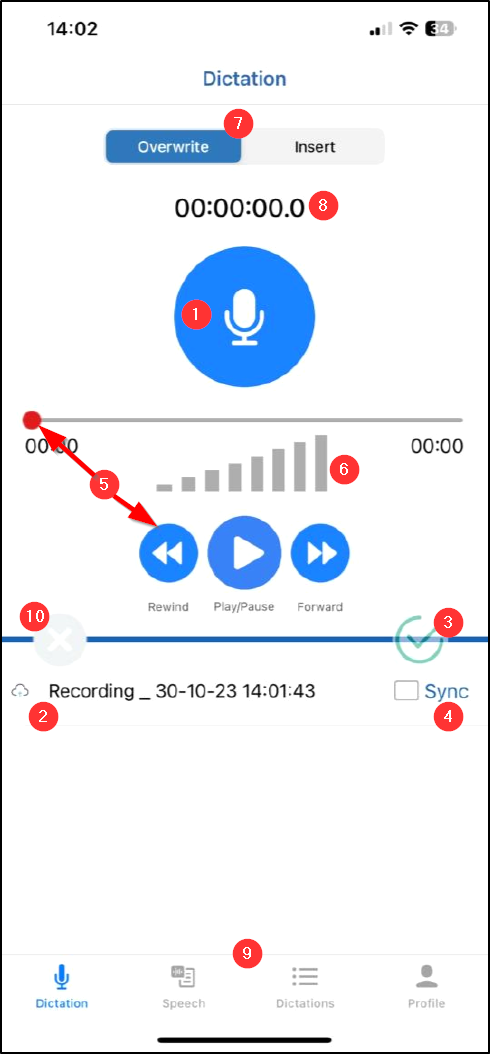
See picture below of the areas mentioned by number:
- Record button to Dictate.
- Dictation saved in phone memory and yet to be saved on the cloud. They stack up here for the authors visibility.
- Green Check Mark to Save audio dictation: Once the audio recording is completed. Click on the green check mark to save dictation.
- Sync: To upload offline dictation to the cloud and assign it to the transcriber, click the Sync checkbox and press SAVE, which will appear in the top right corner.
- Drag the slider to listen to audio dictation from a particular point or tap Rewind/Forward/Play buttons.
- The microphone sound intensity indicator lights up when the sound is recorded.
- Default – Always append audio at the end.
- Click on Insert and choose position to add new audio at your desired place.
- Click on Override and select position to remove audio from your desired place.
- Recorded Audio timer.
- Quick navigation tabs at the bottom.
- Dictation – Recorder to perform Audio to text (upper half of the screen) and offline dictations or pending upload (bottom half)
- Speech – Realtime speech to text ability to perform Speech to text.
- Dictations - Display list of dictation uploaded to the cloud – this view identical to the web view for transcribers.
- Audio Dictation Tab: Display list of Manual and Custom speech dictation and real time status.
- Speech Dictation Tab: Display list of real time speech to text dictations meta data and rea time status.
- Profile – This tab contains a backup section where audio files are backed up in a local device.
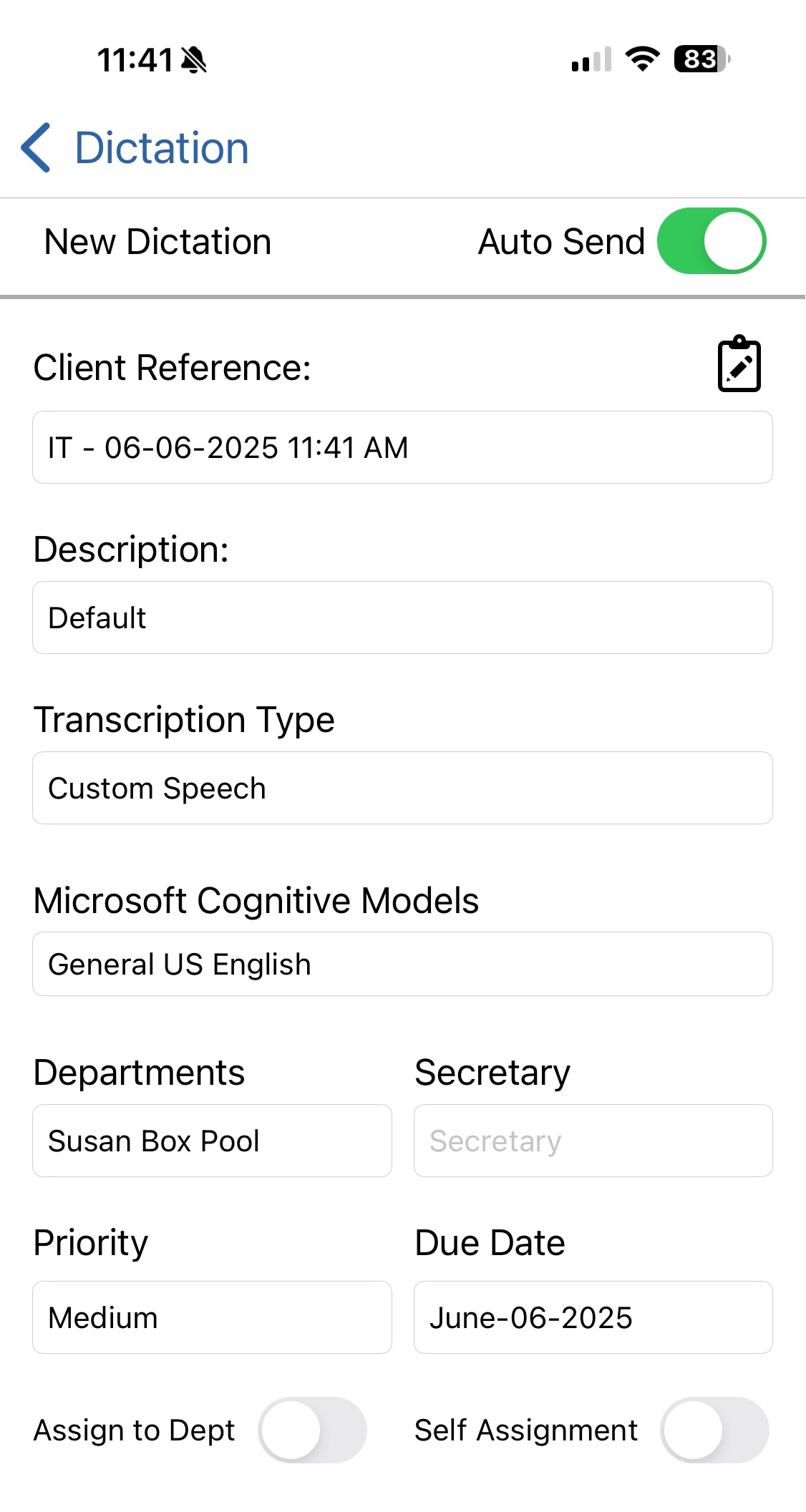
Once save is clicked, author will have the opportunity to:
- Add a client reference (ie, client matter number, or name)
- Choose a default (ie, correspondence)
The departments should be their own attorney pool. (The pool consists of their assistant and any backup.)
- Only choose specific assistant if want the dictation to ONLY go to that assistant.
- If need to send a dication to someone not in their pool, author can choose All Legal Assistants in the Departments dropdown, then choose a specific assistant from the Secretary dropdown. *NOTE: remind author to confirm it is set back to their pool on next save/send.
Save
To learn about additional features of Dictalogic for your mobile device, please review the PDF documents attached to the bottom of this article.
Questions? Contact Us!
IT Support Desk


Hours - 8:00AM - 6:00PM EST
Email - [email protected]
Phone - (330) 849-6699*
*For Emergency Assistance please use option 8


