



 42
42
About Microsoft Authenticator
- MFA stands for Multi-Factor Authentication. This requires a user to provide two or more verification factors to gain access to a resource. We use Microsoft Authenticator.
- This level of protection is required for all Roetzel employees in order to access firm specific applications (i.e. Outlook, VPN, Microsoft Teams, etc.)
Installing Microsoft Authenticator on iOS devices (iPhone & iPad)
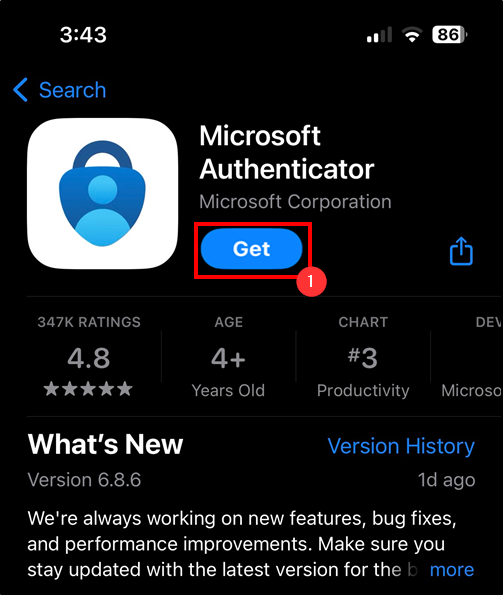
1. From your phone or tablet, go to the App Store and install Microsoft Authenticator.
2. Once installed, Go to aka.ms/mfasetup on your computer and sign in using your R&A credentials (email, network password).
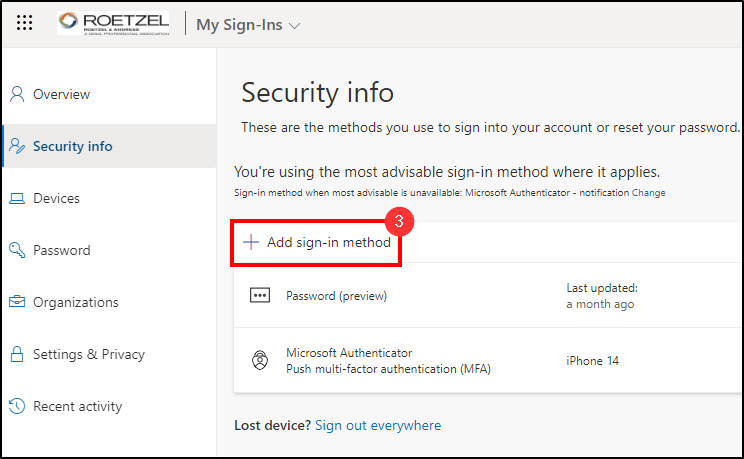
3. Once you are at the MFA settings website on your computer, Click the option for Add Sign-In Method.
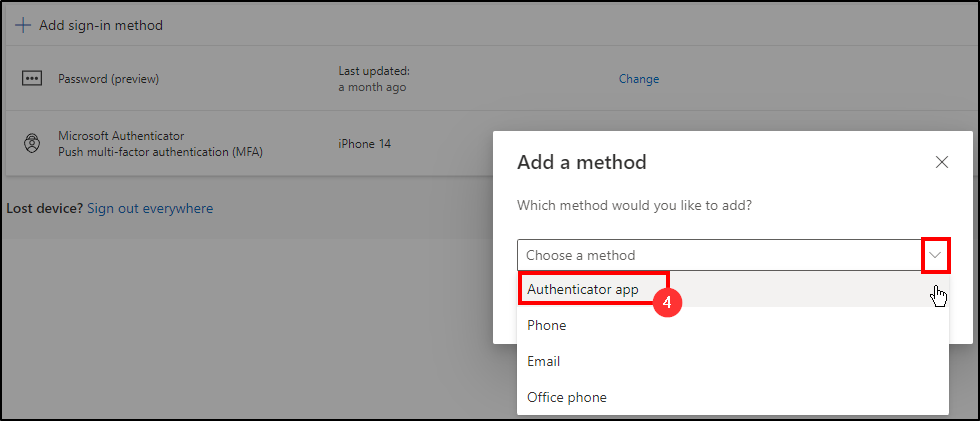
4. A window will appear asking to choose a method. Click the dropdown arrow and choose Authenticator App.
5. Once selected, click Add.
6. Click Next.
7. Click Next.
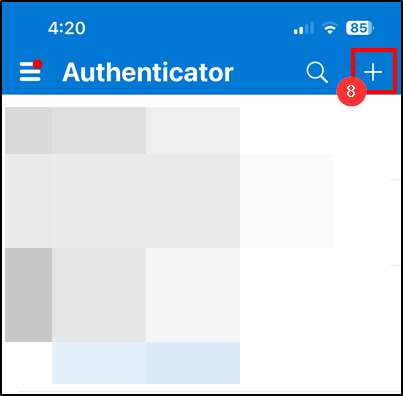
8. Once you see the QR Code showing on the computer screen, open the Authenticator app and click on the the plus (+) symbol on the top right of the screen.
9. Select Work or School Account.
10. Select Scan QR Code. You may need to approve camera access.
11. Once scanned, click Next on the computer and it will trigger a test notification. Enter the number you see on the computer screen into the Authenticator app.
12. Once the test was successful, your Authenticator app has been successfully installed and configured.
Questions? Contact Us!
IT Support Desk


Hours - 8:00AM - 6:00PM EST
Email - [email protected]
Phone - (330) 849-6699*
*For Emergency Assistance please use option 8

