



 35
35
Conference Room System Instructions
Note: If you wish to use the conference room computer, the SOURCE is set to HDMI1.
1. Make sure the source is set to HDMI using the SOURCE button on the Samsung TV Remote Control.
2. Plug the ClickShare Dongle into a USB port on a laptop.
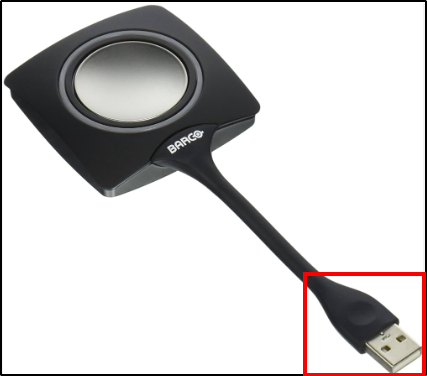
3. The LED ring around the button will blink white.
4. If the BitDefender prompt appears, click YES.
5. Open File Explorer and open the drive named ClickShare.
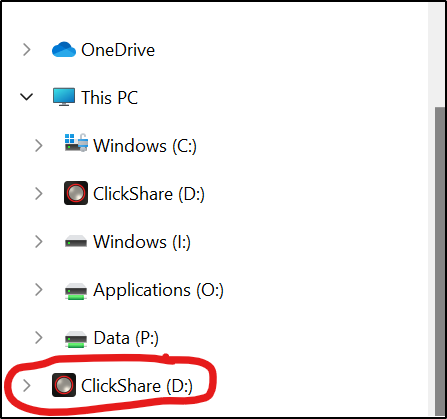
6. Double click the ClickShare_for_Windows.exe file.

7. When ready, the LED around the USB dongle button will turn solid white and a brief popup will display in the lower corner of your screen.
8. Click the button on the USB dongle and the LED light around the button will turn solid red. Your laptop screen will display on the TV.
9. To disconnect, press the USB dongle button. Your laptop will stop sharing and you can disconnect the USB dongle.
Questions? Contact Us!
IT Support Desk


Hours - 8:00AM - 6:00PM EST
Email - [email protected]
Phone - (330) 849-6699*
*For Emergency Assistance please use option 8

