



 78
78
About Automatic Replies
- Automatic replies, also known as out of office replies, are messages that are sent when you're away from your office.
- This feature informs people that you're not available to respond to their emails.
- This is primary used for:
- Vacation Notices
- Out of Office/Emergency Notices
Setting Automatic Replies using Outlook
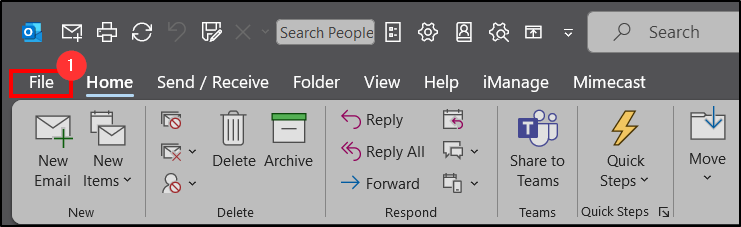
1. Press File on Outlook.
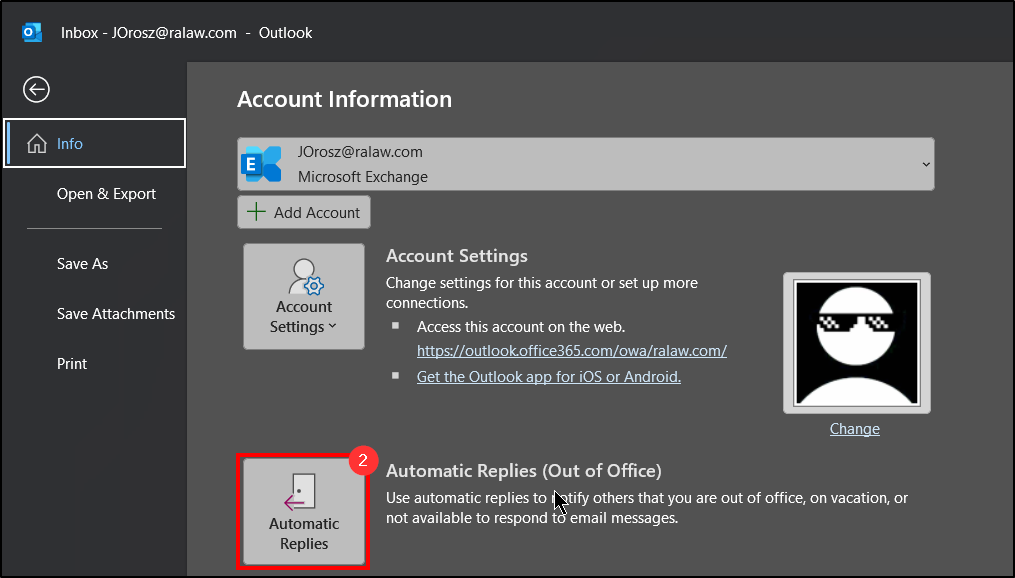
2. Select Automatic Replies .
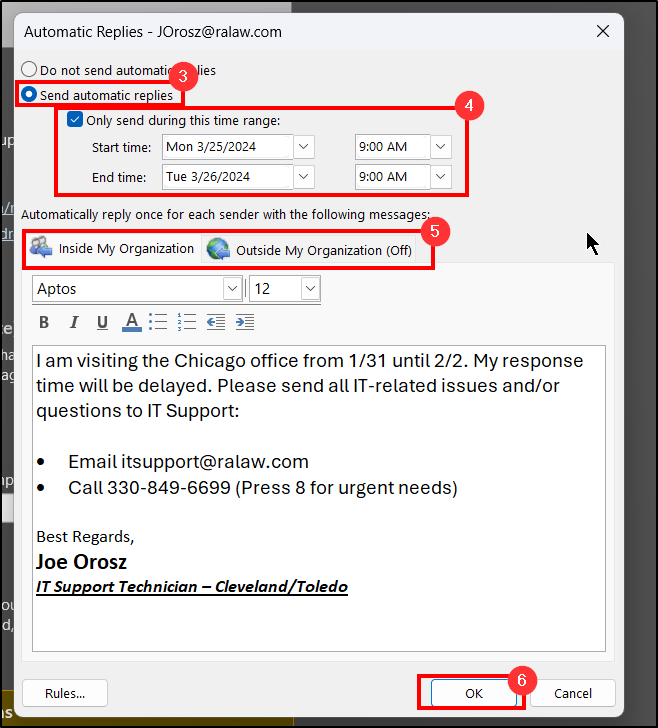
3. Flip the radio button to be Send Automatic Replies.
4. Checkmark Only Send During This Time Range and enter the time you wish for the replies to be sent out until.
5. Begin filling out the message in the text box. Once you have created this, also set one for people Outside Myorganization on the other tab (for clients, non-Roetzel email addresses). You can copy the same message or create a different one.
6. Once the message(s) have been made, click OK. The replies will be sent out until the desired time set on step 4 and will turn off automatically when the time has passed.
Setting Automatic Replies using Teams on iPhone/Android
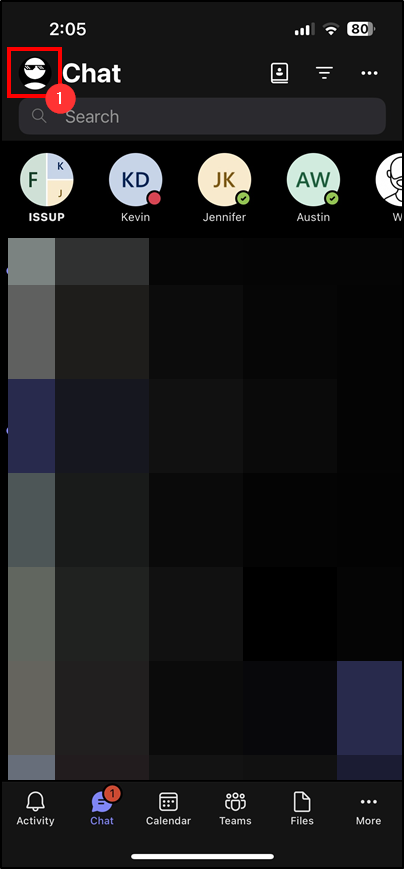
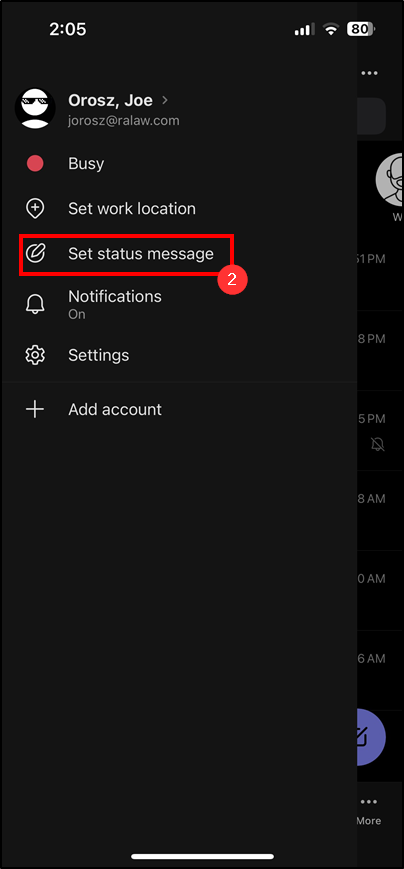
1. Open the Teams app and click on your profile icon on the top left of the screen.
2. Tap Set Status Message.
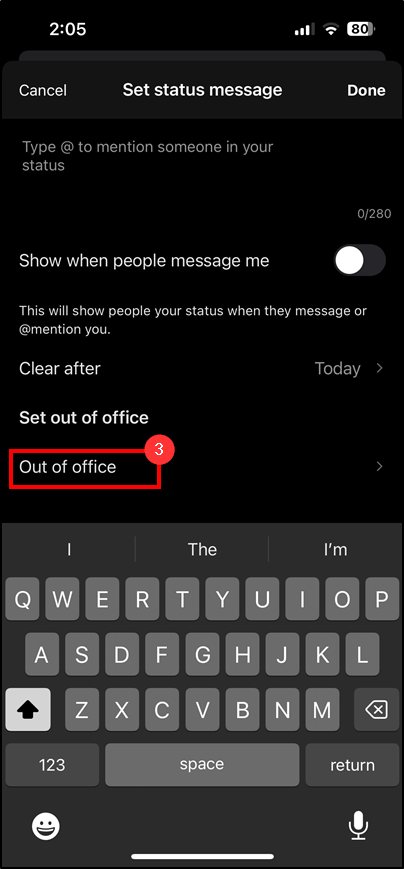
3. Tap Out of Office.
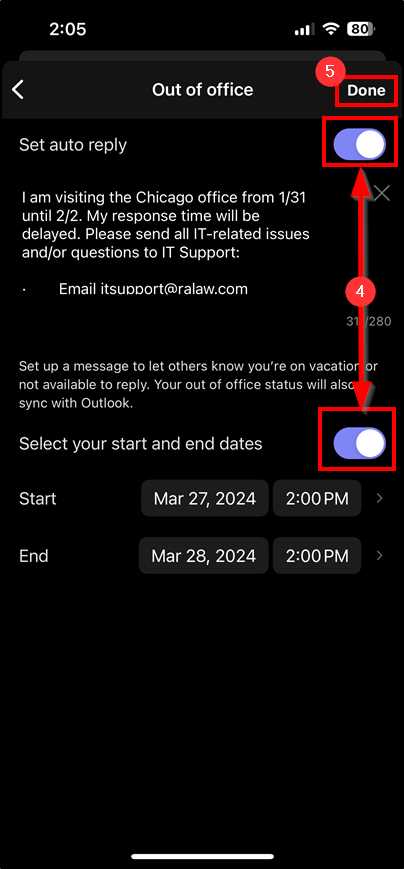
4. Enable Set Auto Reply and Select your Start and End Dates.
5. Enter the message in the text box, set the dates for the auto reply, and then press Done.
Questions? Contact Us!
IT Support Desk


Hours - 8:00AM - 6:00PM EST
Email - [email protected]
Phone - (330) 849-6699*
*For Emergency Assistance please use option 8

