



 35
35
1. Select the worksheet that you want to print.
2. On the Page Layout tab, in the Page Setup group, select  Print Titles.
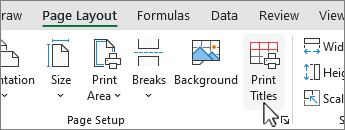
Note: The Print Titles command will appear dimmed if you are working in cell editing mode, if a chart is selected on the same worksheet, or if you do not have a printer installed.
3. On the Sheet tab, under Print titles, do one or both of the following:
3A. In the Rows to repeat at top box, type the reference of the rows that contain the column labels.
3B. In the Columns to repeat at left box, type the reference of the columns that contain the row labels.
-- For example, if you want to print column labels at the top of every printed page, you could type $1:$1 in the Rows to repeat at top box.
Official Microsoft Support Guide: https://support.microsoft.com/en-us/office/print-rows-with-column-headers-on-top-of-every-page-d3550133-f6a1-4c72-ad70-5309a2e8fe8c
Questions? Contact Us!
IT Support Desk


Hours - 8:00AM - 6:00PM EST
Email - [email protected]
Phone - (330) 849-6699*
*For Emergency Assistance please use option 8

