



 74
74
Before Setup
-
Confirm the name of your home Wi-Fi.
-
Confirm the password to your home Wi-Fi.
What’s In The Box?
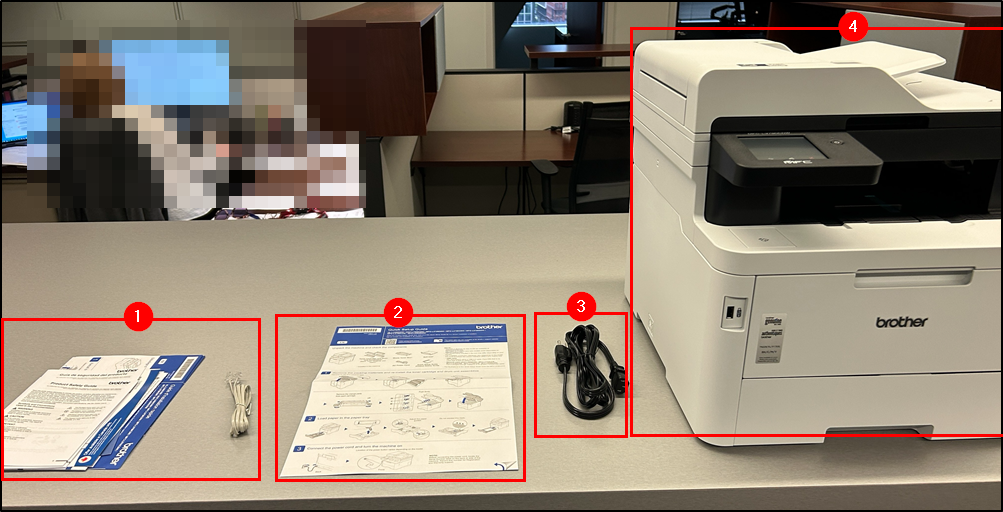
-
Additional Booklets and Fax Cable (Not Used)
-
Quick Start Guide
-
Power Cable for Printer
-
Printer
If your printer is located less than 4 feet away from where you work at home, please contact IT Support to be provided a printer cable instead of needing to connect to Wi-Fi for printing.
Removing Printer Packaging
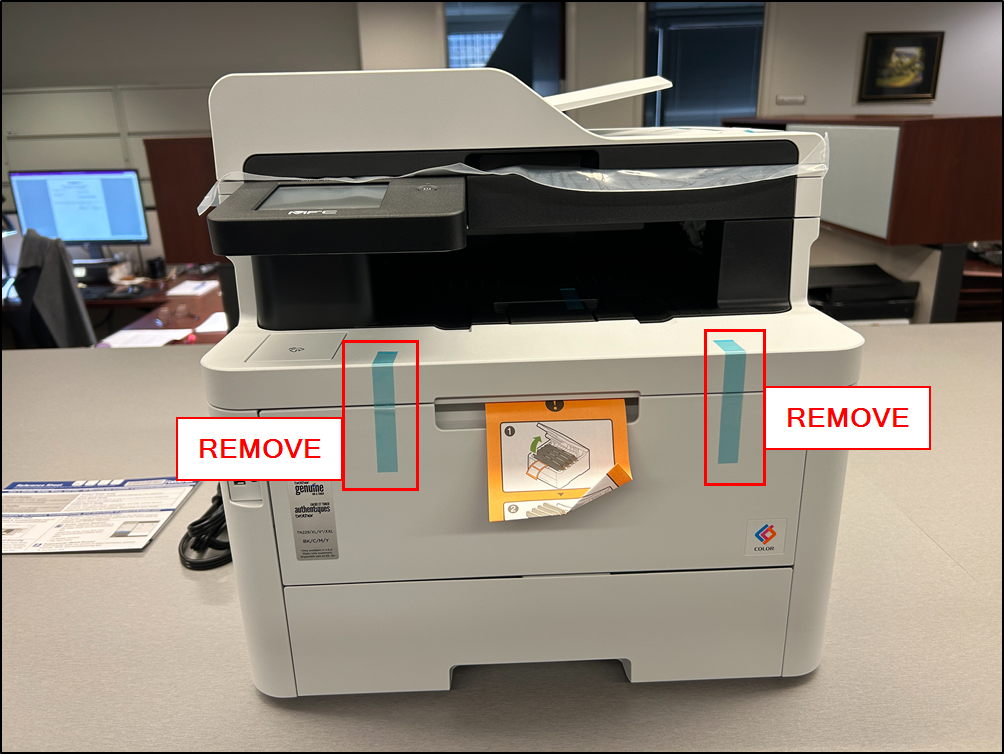
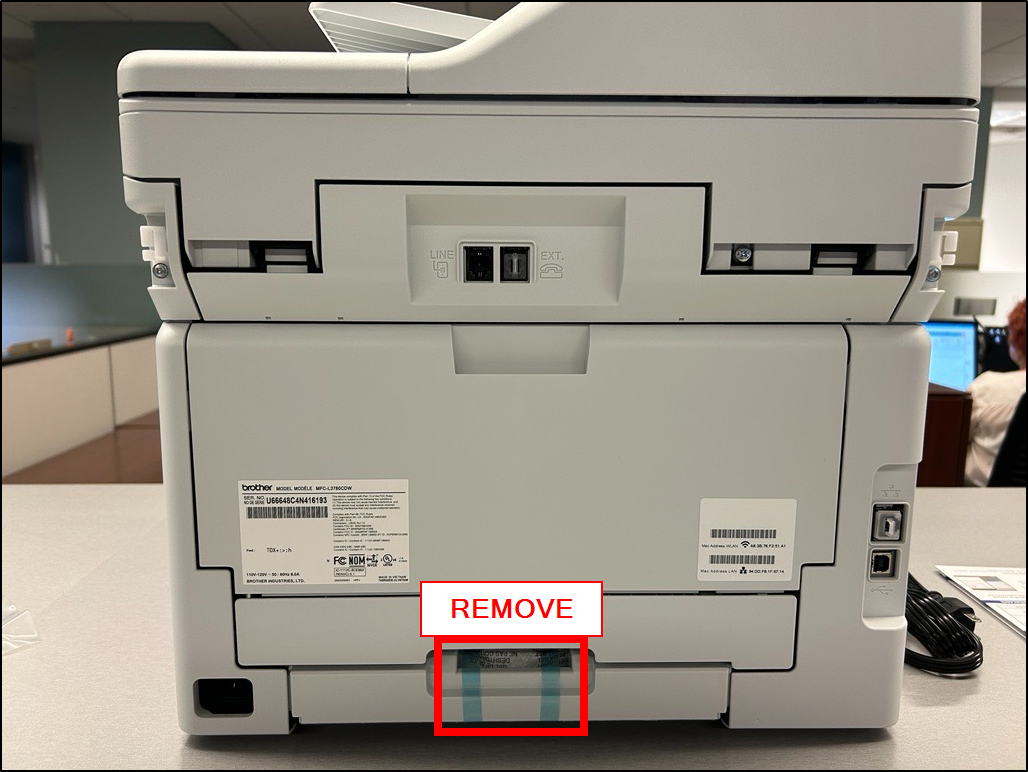
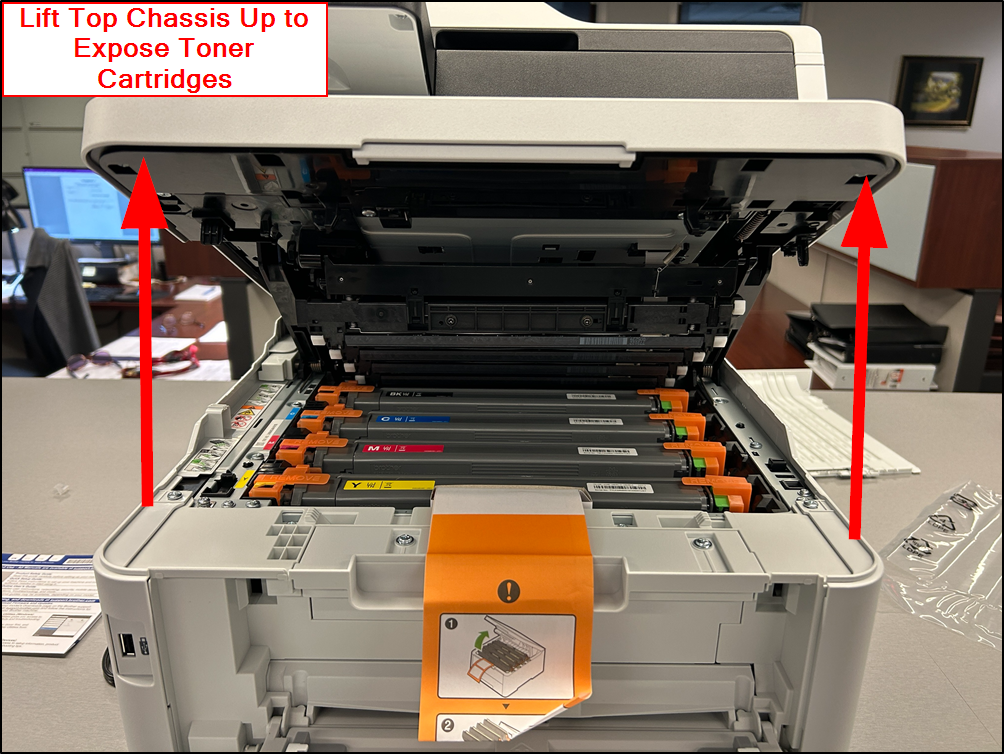
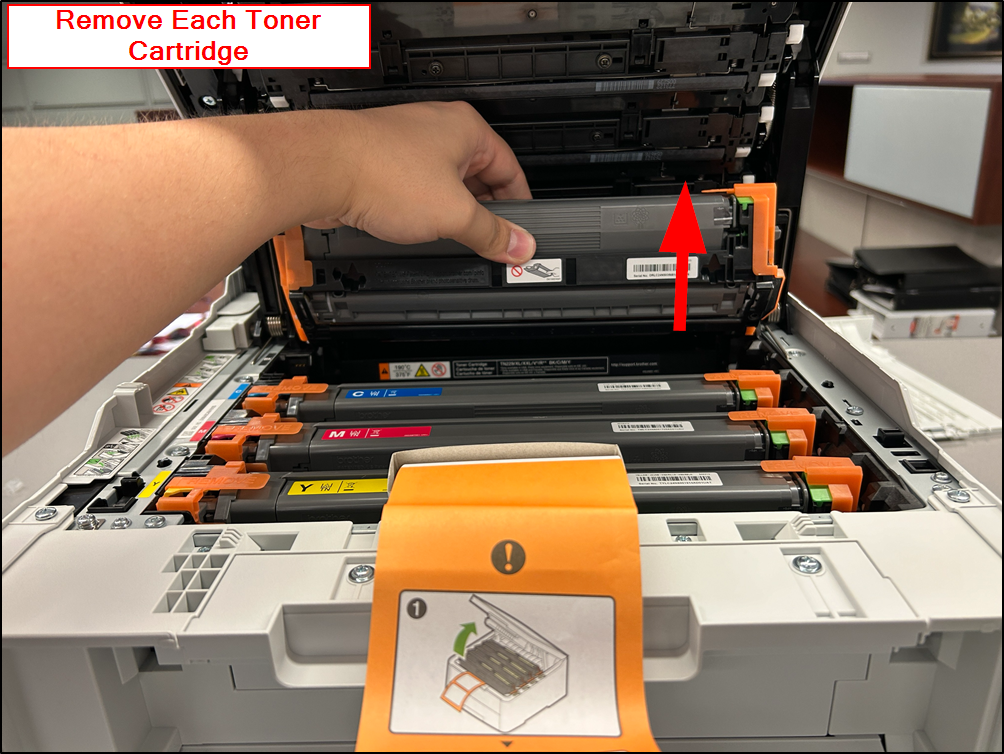
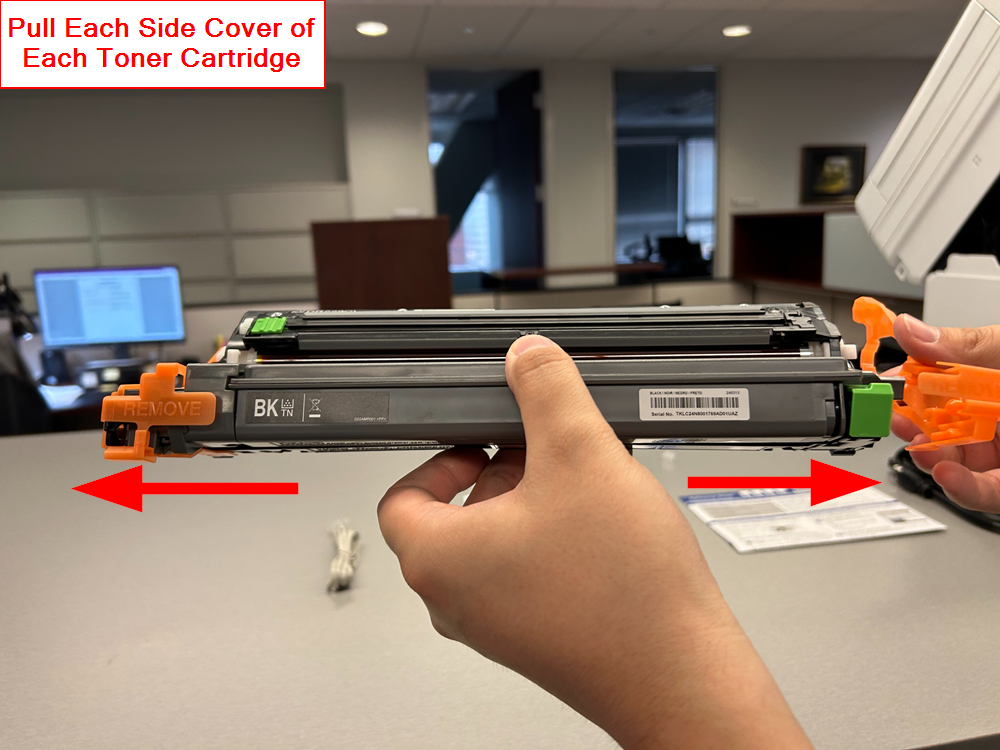
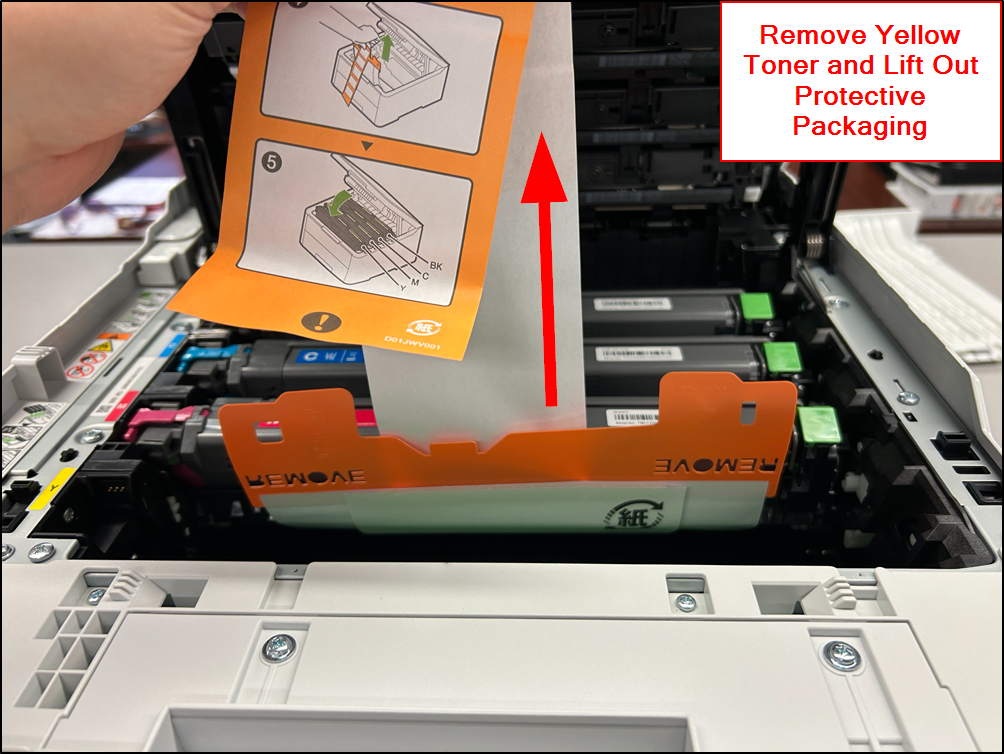
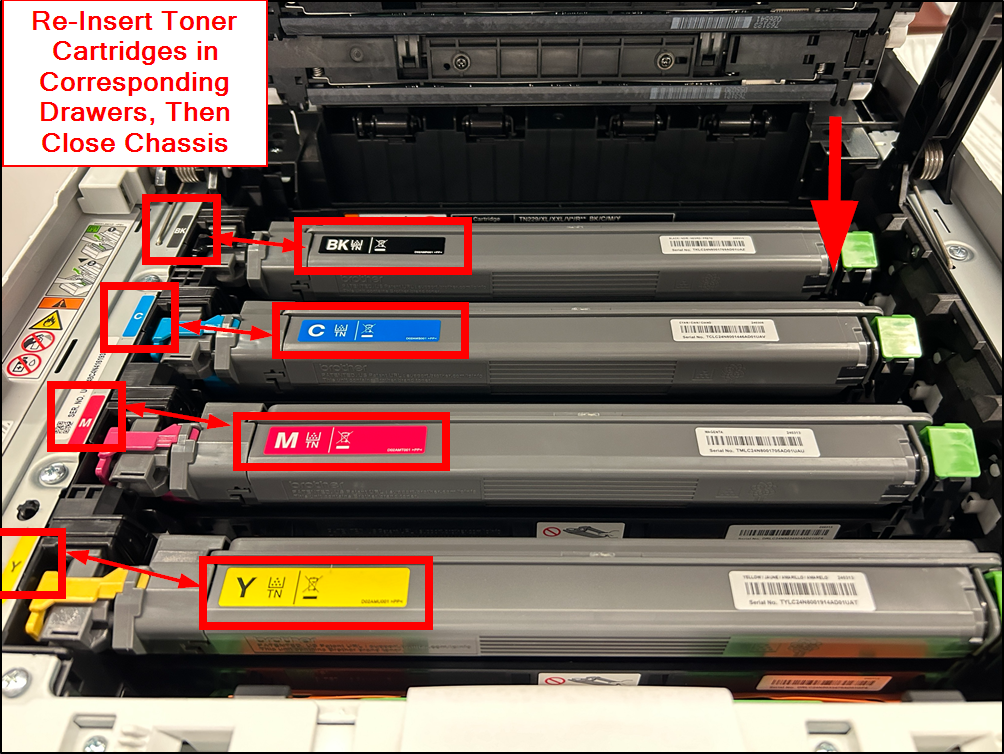
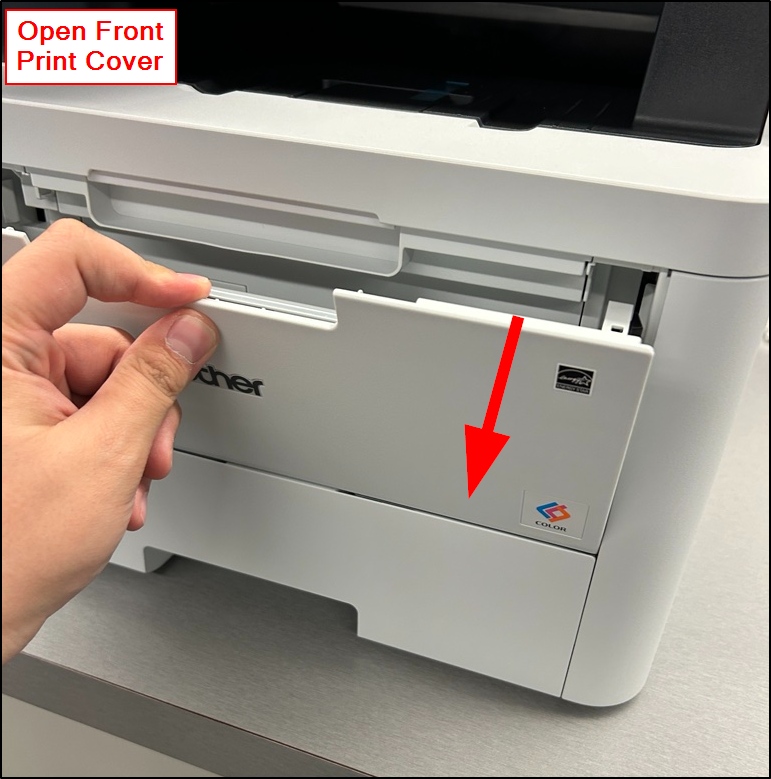
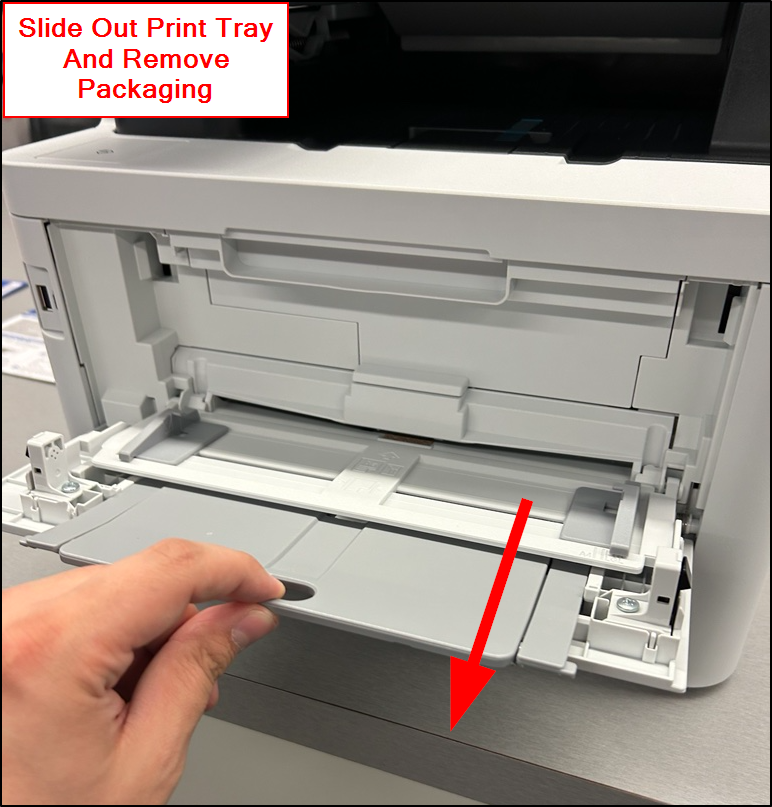
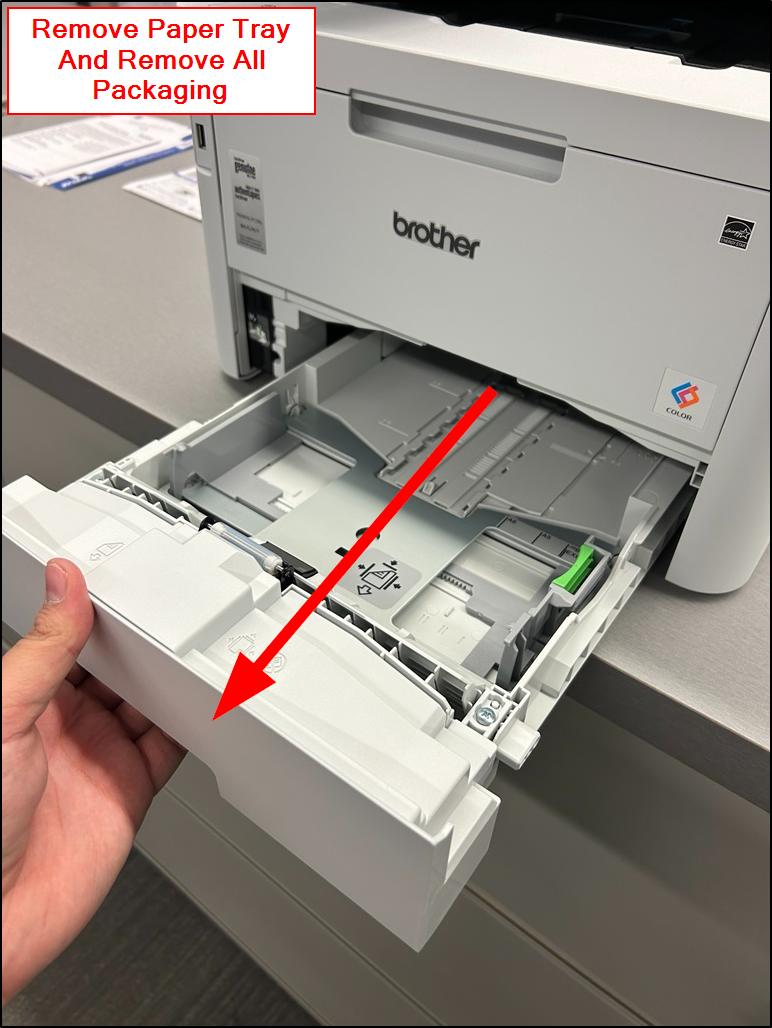
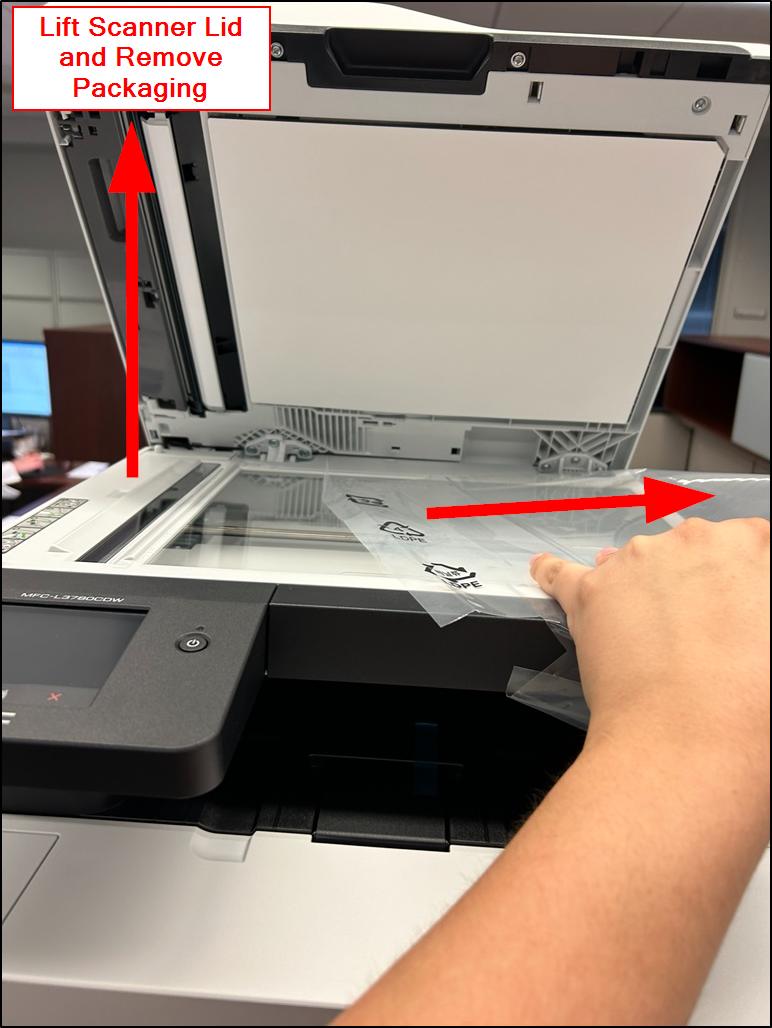
Please review the quick start guide provided with the printer to verify all packaging has been removed before proceeding.
Powering On The Printer
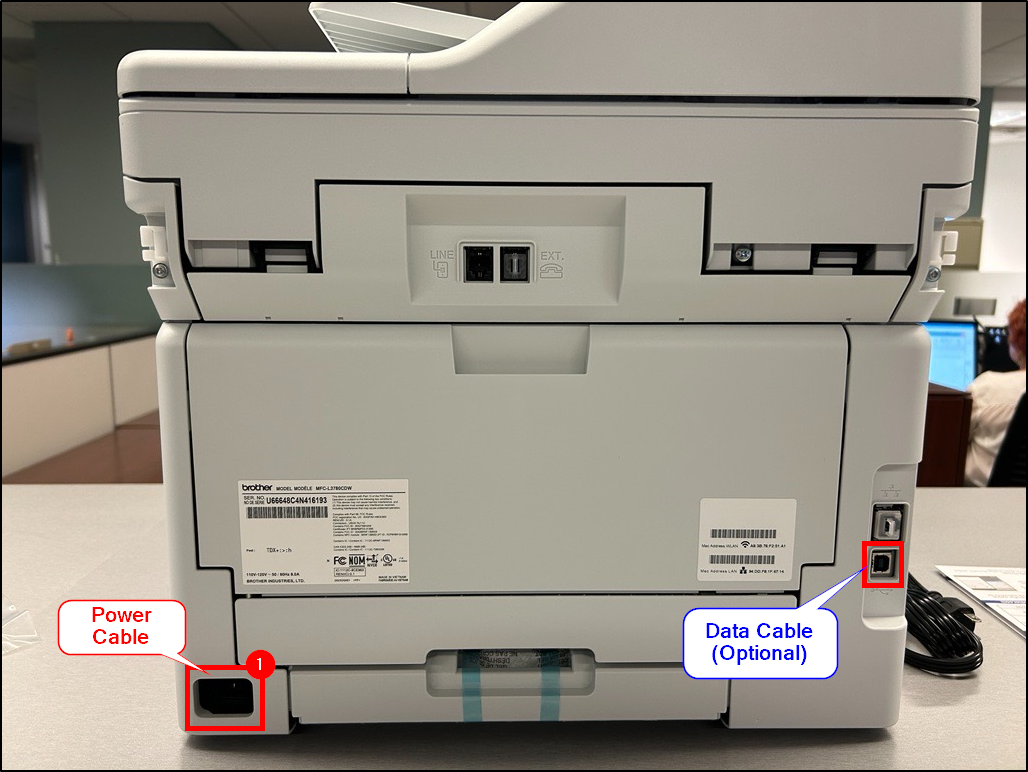
1. Plug the Power Cable into the back of the printer. If a data cable was provided, plug this into the printer and also your computer as well (optional).
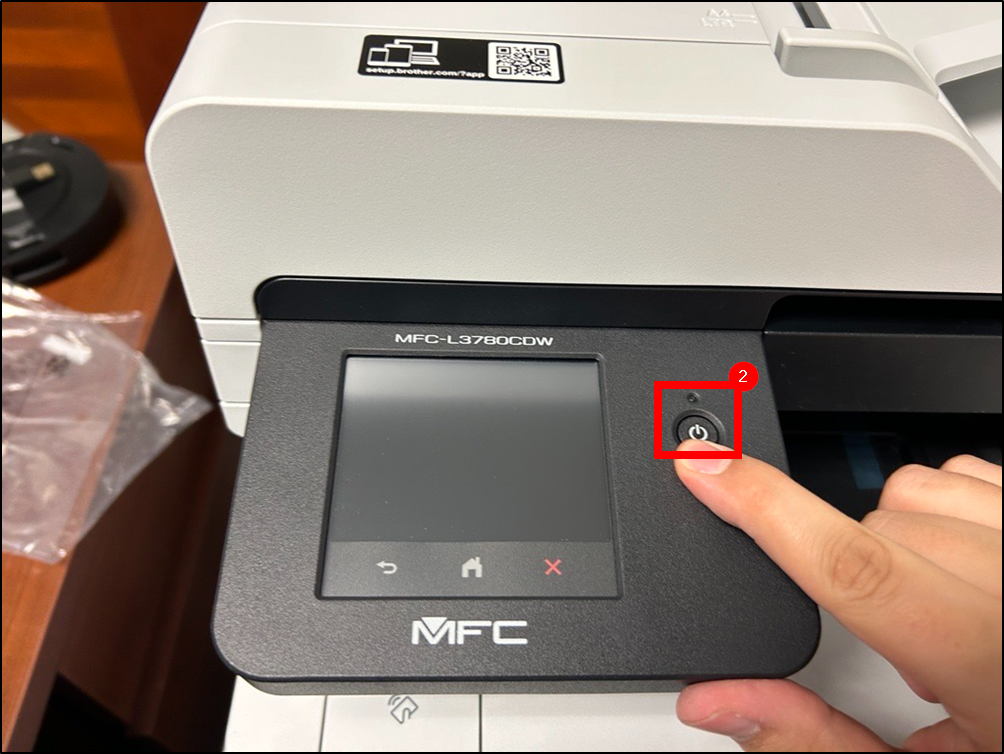
2. Press the Power Button once connected to power.
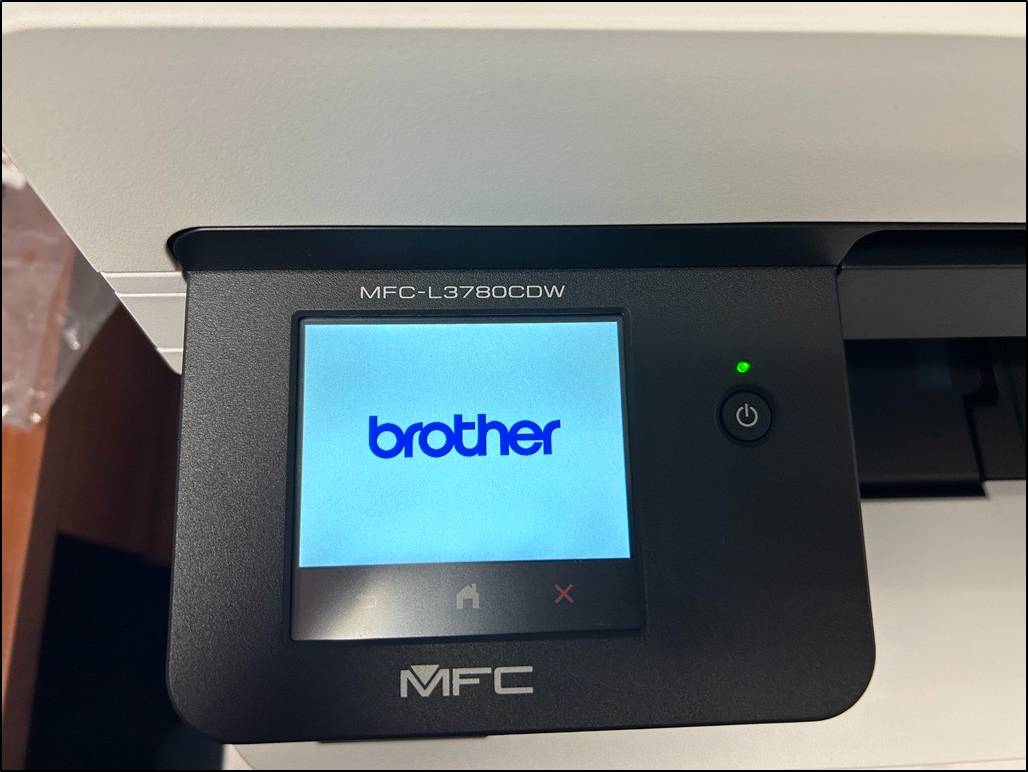
3. Let the printer start up. This may take up to 3 minutes.
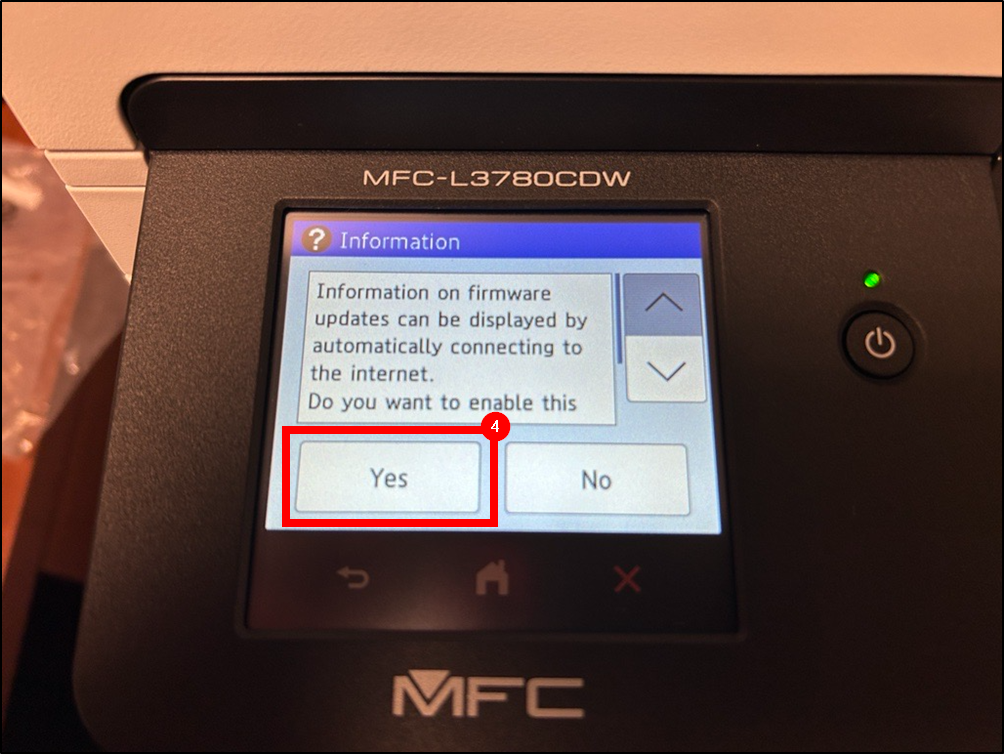
4. A message will appear asking to allow firmware updates. Press Yes.
5. You will now be at the printer Home screen.
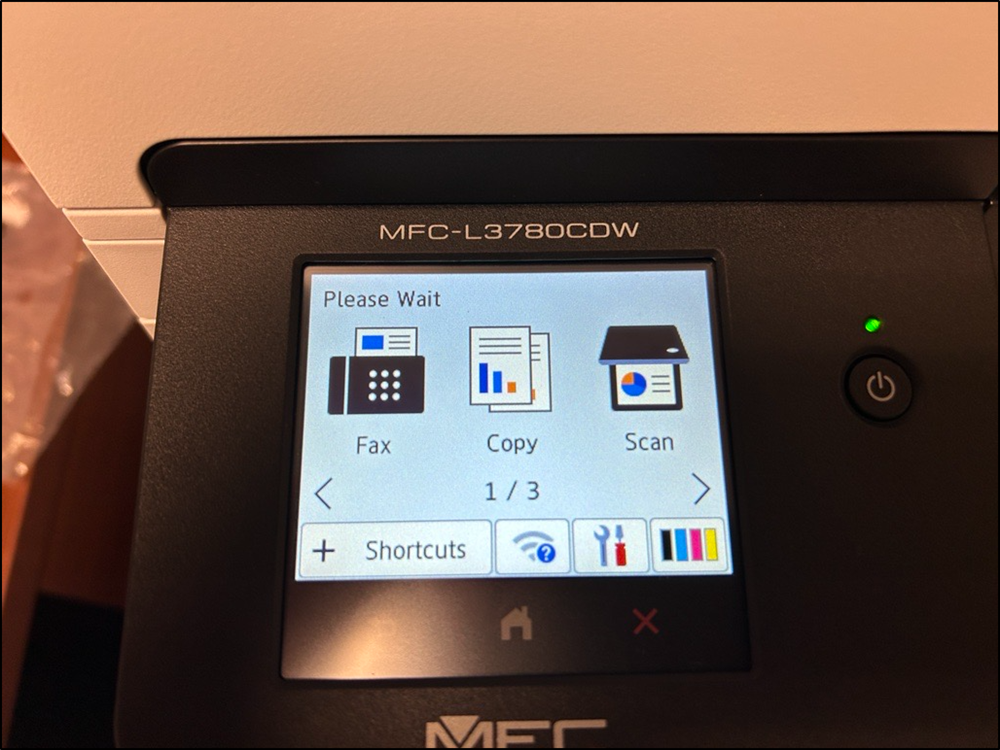
Connecting Printer to Wi-Fi
If you were provided a printer cable, skip steps 1-4
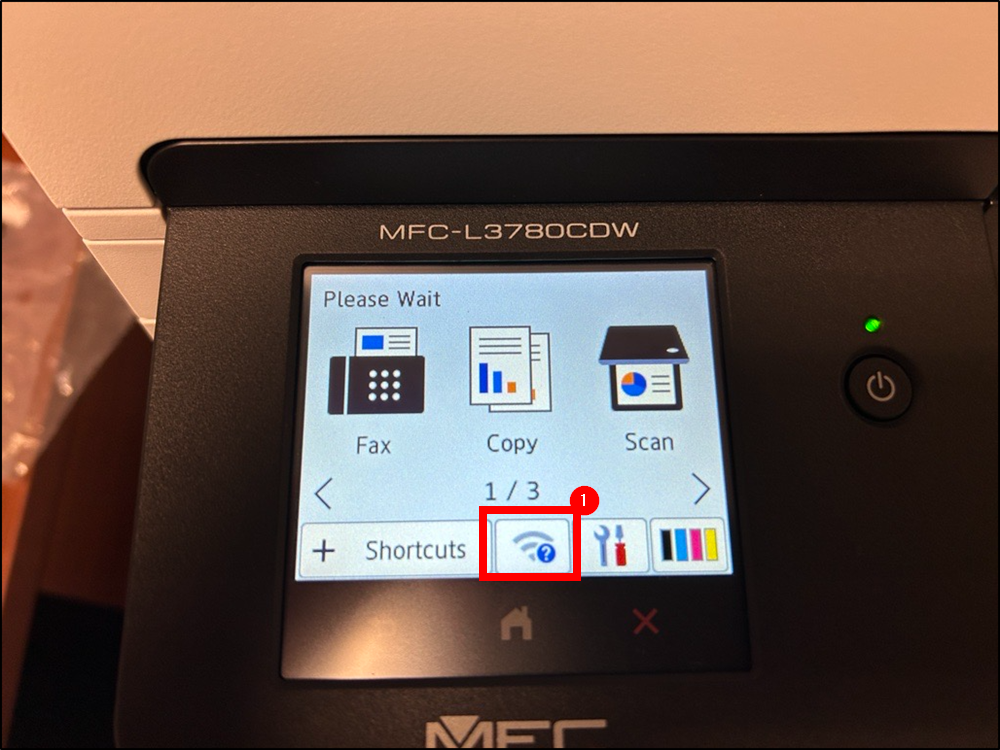
1. Tap on the Wi-Fi Symbol on the bottom of the screen.
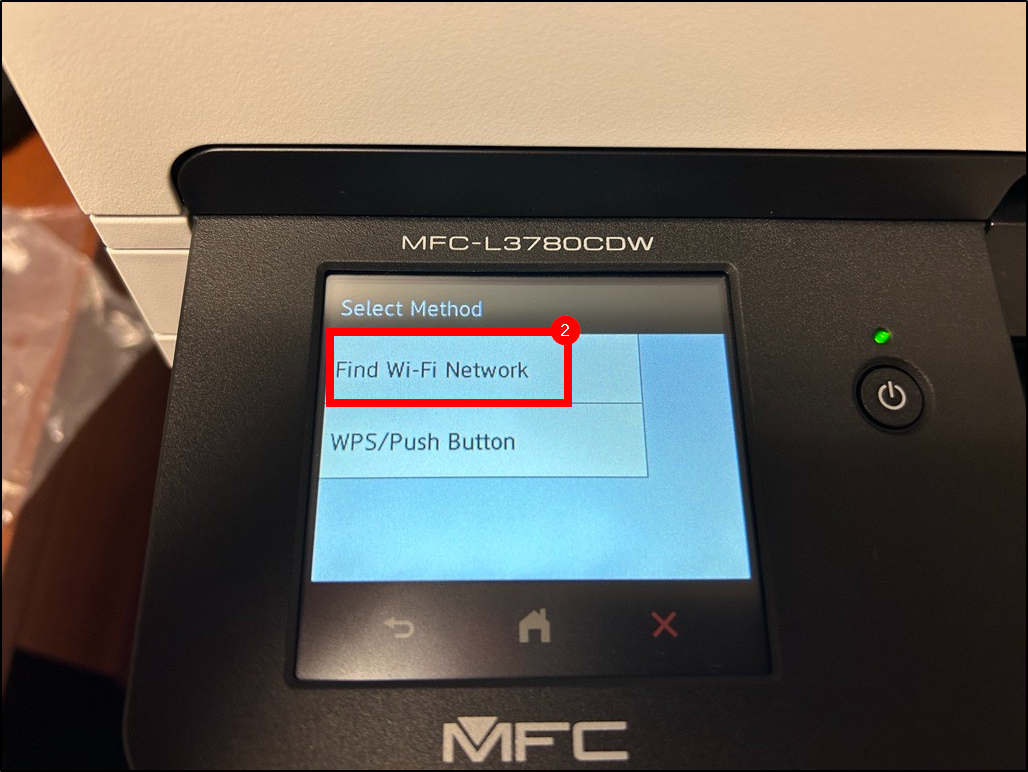
2. Tap Find Wi-Fi Network.
3. Use the Arrow Buttons to scroll up and down to select your home Wi-Fi.
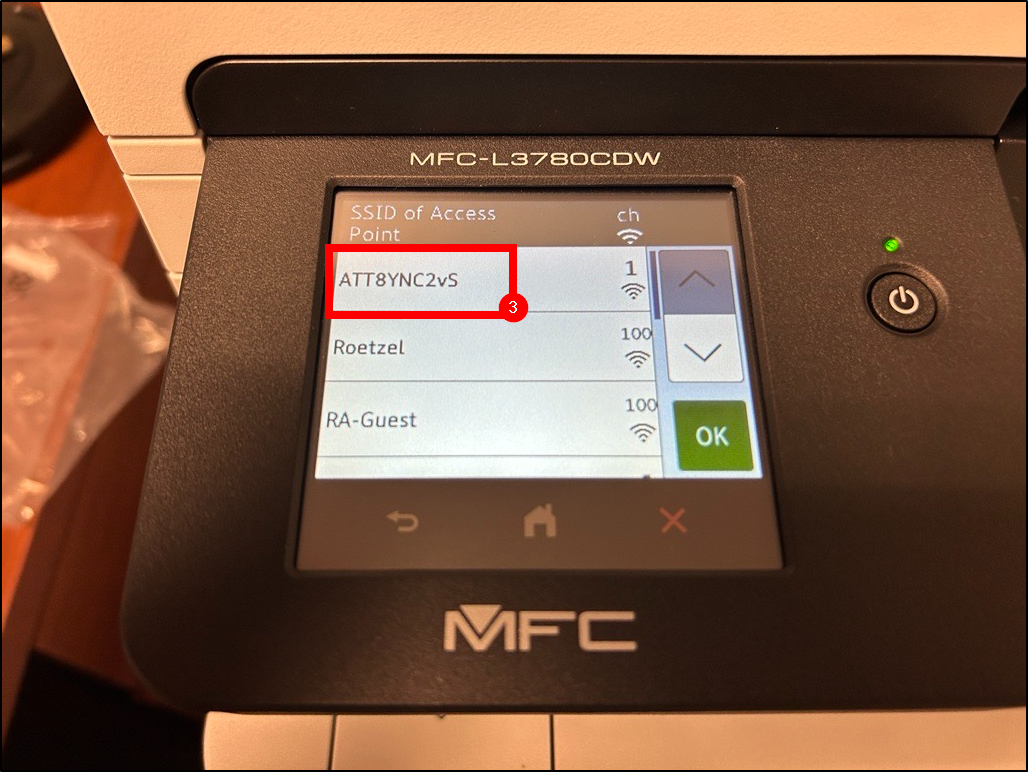
4. Upon selecting the Wi-Fi network, type in the Wi-Fi password and press OK. It should connect after this step.
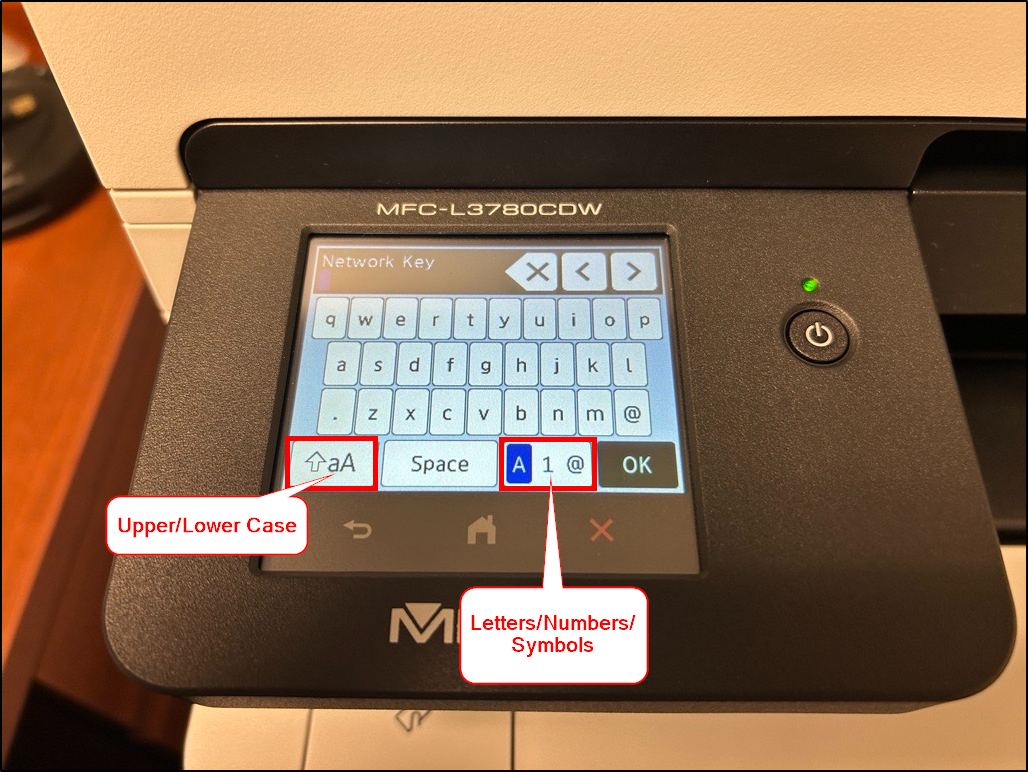
5. Contact IT Support at 330-849-6699 or [email protected] for assistance in installing the Brother printer software on your computer.
Updating Firmware
Brother Printer
- Update does not need EDM
- Install portion does need EDM
- Need Machine Password to install Firmware
- MYashko: initpass (default)
Questions? Contact Us!
IT Support Desk


Hours - 8:00AM - 6:00PM EST
Email - [email protected]
Phone - (330) 849-6699*
*For Emergency Assistance please use option 8

