



 34
34
How to Delay an Email from being Sent
1. Change a Setting in Outlook Web
1. Open a web browser and go to https://outlook.office.com/
2. Click Sign In; this is usually located on the top right of the website.
3. Sign in with your R&A email, password and mobile phone verification prompt.
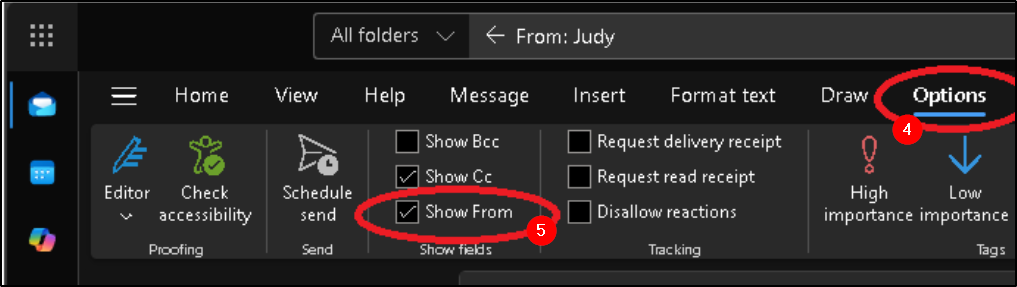
4. Once you are in Outlook on the browser, click the Options tab on the top of the window.
5. Tick the checkbox to ☑ Show From.
2. Compose New Email to Delay Send
1. Create a new email like normal.
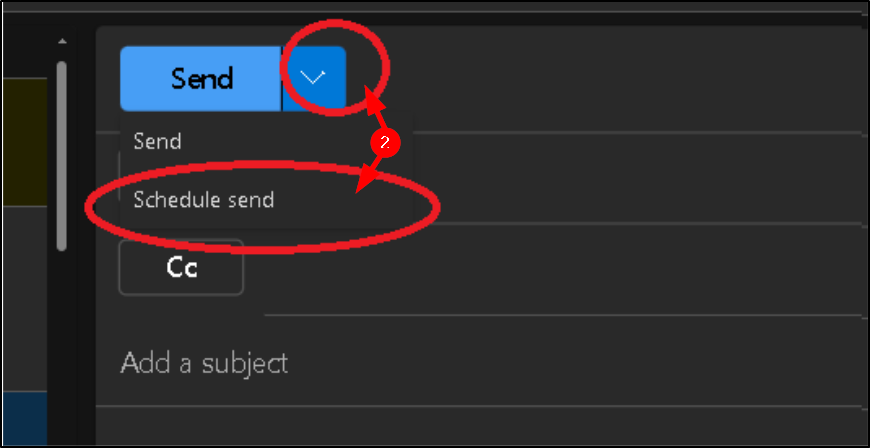
2. Before sending, click the arrow next to the Send button and choose Schedule Send.
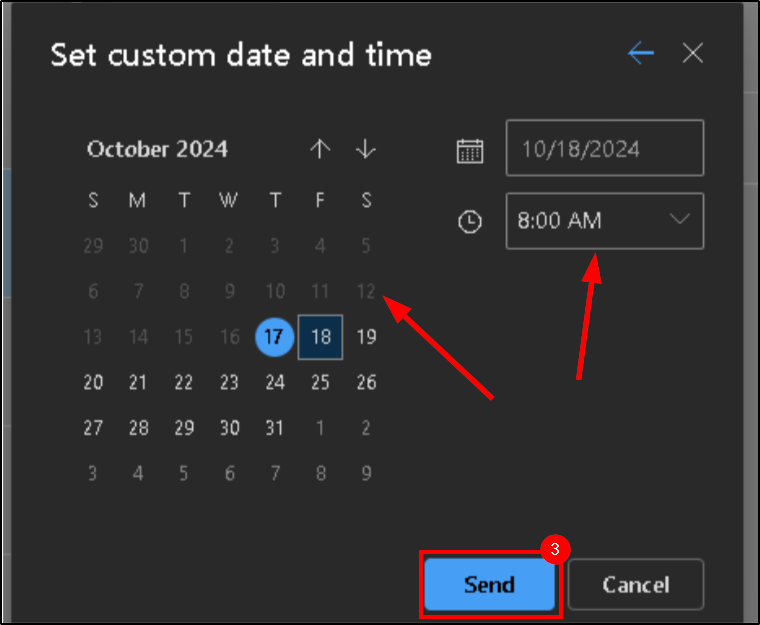
3. Enter in the time you wish to send this and press Send* .
*Choosing Send is not sending the email at that time, it is sent to your Drafts folder and will remain their until the time that it is set to.
Questions? Contact Us!
IT Support Desk


Hours - 8:00AM - 6:00PM EST
Email - [email protected]
Phone - (330) 849-6699*
*For Emergency Assistance please use option 8

