



 484
484
Nuance PDF - Adding and Removing Passwords to Documents
Adding Security to PDF Documents using Nuance PDF
1. Open the document in Nuance PDF.
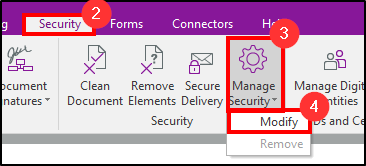
2. Click the Security tab.
3. Click the dropdown for Manage Security.
4. Click Modify.
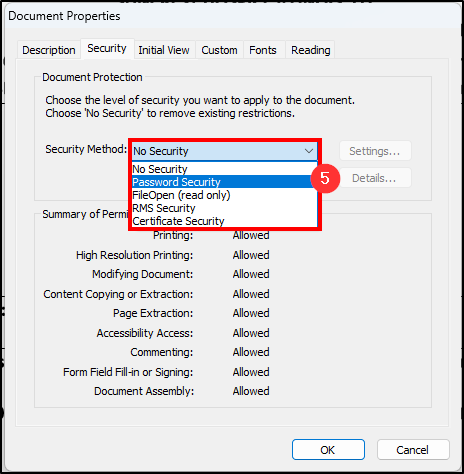
5. Click the dropdown for Security Method and choose Password Security.
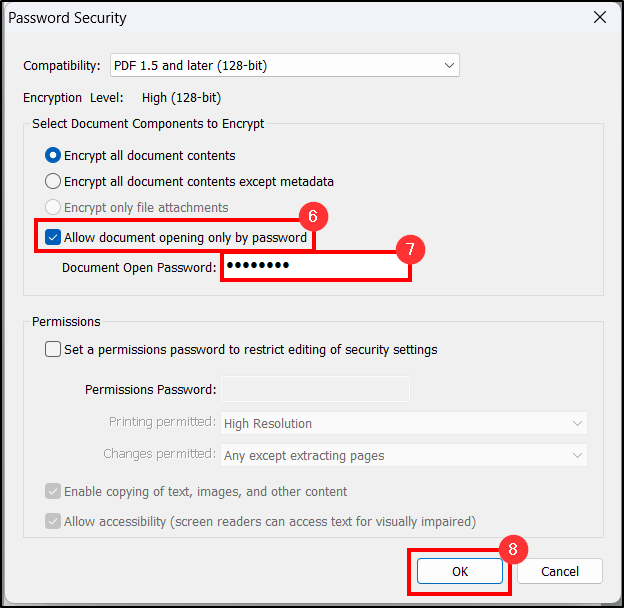
6. A new window will immediately show. Checkmark Allow Document Opening Only By Password.
7. Enter in the Password in the text box.
8. Press Ok.
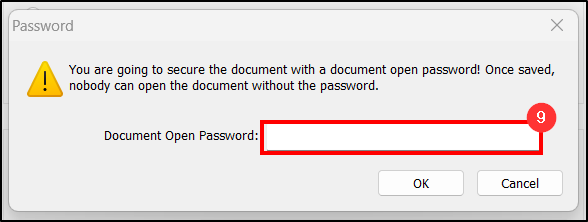
9. Confirm the password on the next window.
10. Click Ok on the remaining windows until you are back at the PDF document.
11. Go to File, then Save to enable the password security.
Removing Security to PDF Documents using Nuance PDF
1. Open the document in Nuance PDF. You will be prompted to enter the existing password. If you do not know this password, you cannot remove the security from the document...
2. Click the Security tab.
3. Click the dropdown for Manage Security.
4. Click Modify.
5. Choose from the Dropdown "No Security". A message will appear indicating the document must be saved in order to keep the password removed. Fail to save will not remove the password and must repeat step 1 from this section.
Questions? Contact Us!
IT Support Desk


Hours - 8:00AM - 6:00PM EST
Email - [email protected]
Phone - (330) 849-6699*
*For Emergency Assistance please use option 8

