


Google Chrome - Clearing Cache & Cookies

Mar 20, 2025
 63
63
About Cache & Cookies
- Browser Cache is a temporary storage area on your device that holds copies of frequently accessed webpages, images, and other online content to speed up loading times and reduce network traffic.
- Sometimes, websites that are stuck or loading incorrectly may need this cleared.
- Browser Cookies are small text files that websites store on your computer or device to remember information about your visit, like your preferences or login details, which can make your online experience easier and more personalized.
- Sometimes, clearing these if you have issues signing into a website, it will force it to have you re-sign in
How to clear Cache & Cookies on Google Chrome
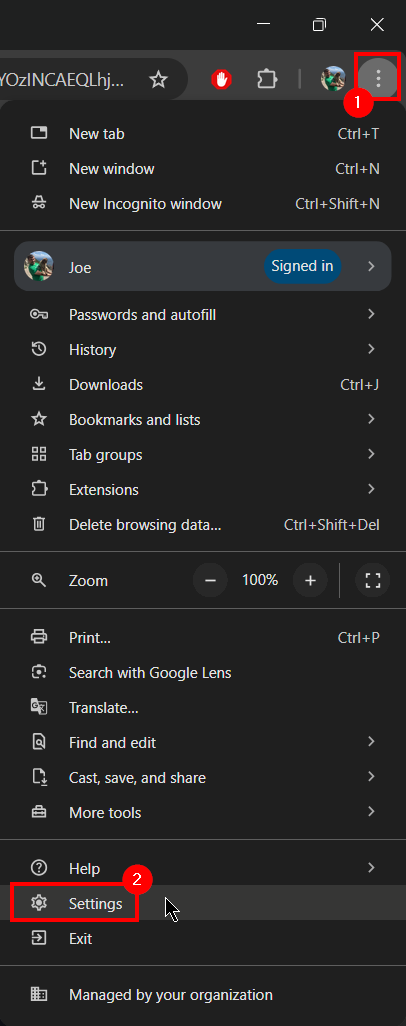
1. Click the ... on the top right of the Google Chrome browser window.
2. Select Settings.
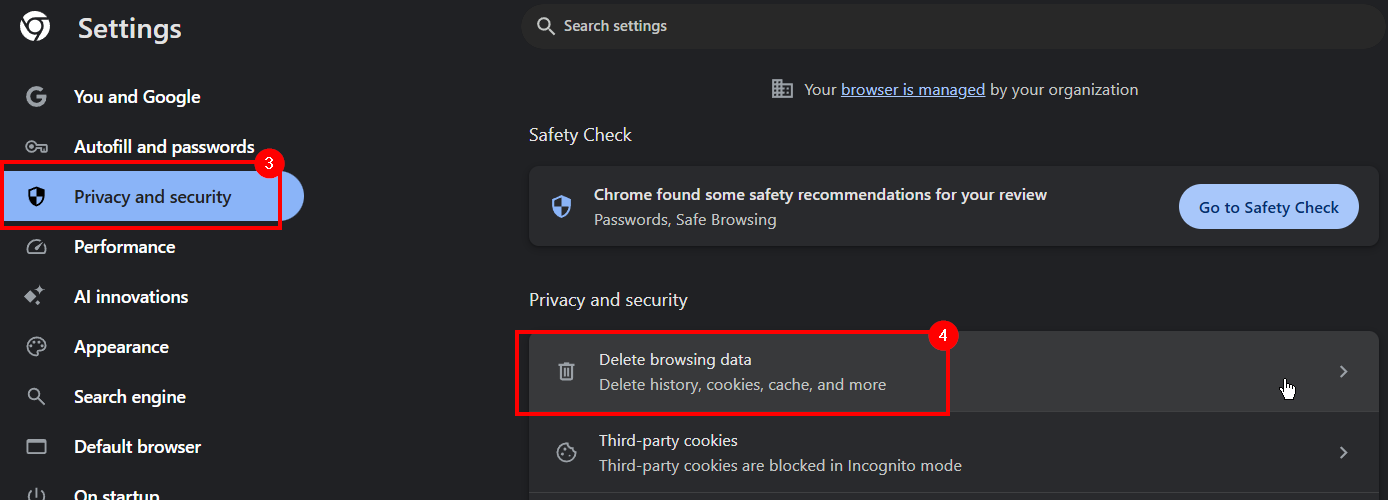
3. Click the Privacy and Security tab.
4. Choose Delete Browsing Data.
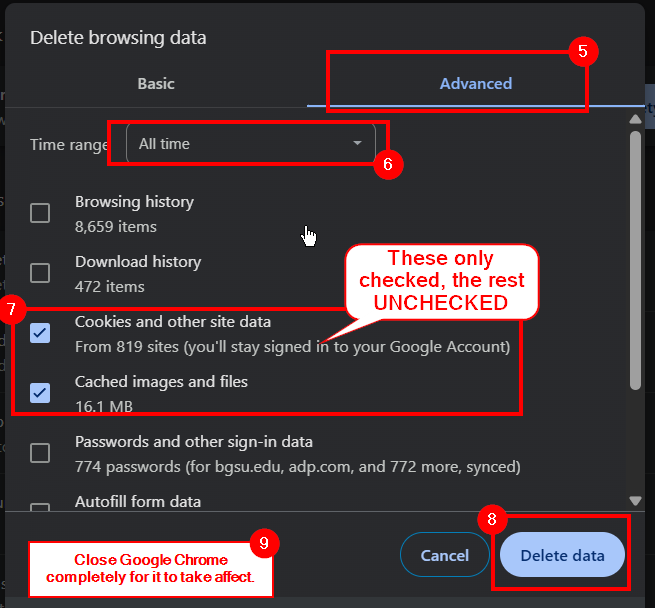
5. Click the Advanced tab.
6. Click from the Dropdown "All Time"
7. Only select Cookies and Cache. Unselect everything else. Scroll down to see the others that are hidden to ensure they are also unchecked.
8. Click Delete Data.
9. Close Chrome completely and try the website again to see if you have issues.
10. If you still have issues, contact IT Support.
Questions? Contact Us!
IT Support Desk


Hours - 8:00AM - 6:00PM EST
Email - [email protected]
Phone - (330) 849-6699*
*For Emergency Assistance please use option 8

