



 74
74
PROFORMA 3E EDITING GUIDE
For access navigate to Roetzel Bookmarks in your browser and select Proforma 3E.
Overview
This guide provides step-by-step instructions for editing and managing Proformas in the system. Please follow these procedures to ensure accuracy and efficiency.
Key Changes & Features
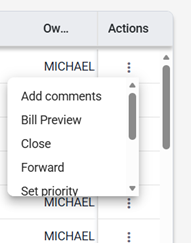
Hold Button Replaced:
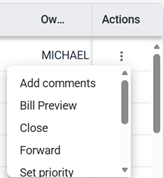
The previous “Hold” button is now “Close.” You cannot access “Close” as you did with “Hold”; by selecting Close, the proforma will go to the next cycle. If you need it back in the current cycle, the biller will need to re-run for you.
UAL Visibility:
You can now view the amount in UAL directly, without contacting Finance.

Urgent Status:
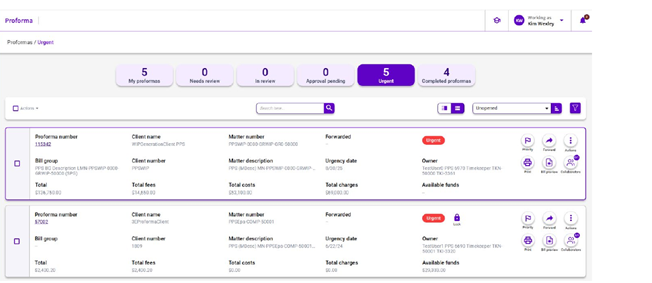
Any Proforma not reviewed within 5 days will automatically be marked as “Urgent.”
Submit Function:
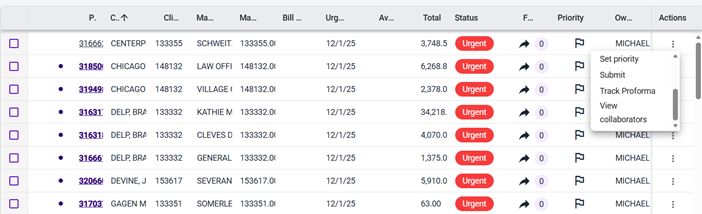
Use “Submit” to finalize a Proforma. This replaces the previous “Bill Matter” function.

Forwarding Proformas:
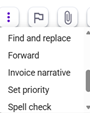
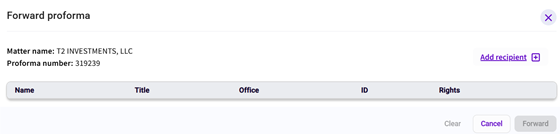
You can forward Proformas to other parties. Recipients will receive a notification, and the Proforma will appear in their queue.
Collaborator Permissions:
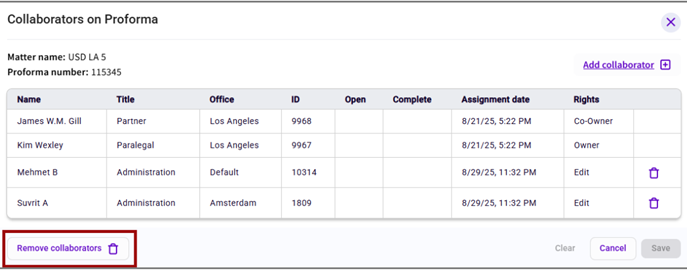
Collaborators can mark a Proforma as completed but cannot submit it. Only the owner can submit. Assigning co-owner rights allows submission.
Editing Proformas
Attorney Selection:
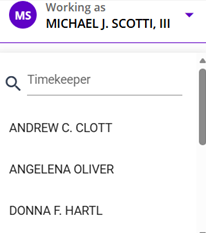
Ensure you are working under the correct attorney profile. Otherwise, you will not see the relevant Proformas (similar to Paperless).
Copy & Paste:
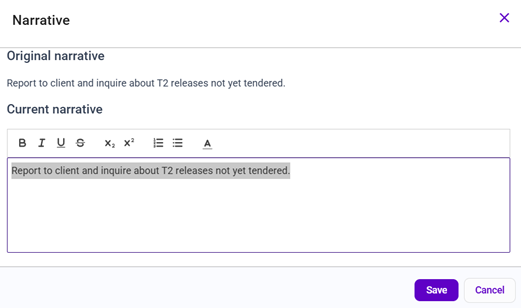
You can copy and paste text within Proformas, unlike in Paperless.
Edit History:
You can view your edit history for each Proforma.
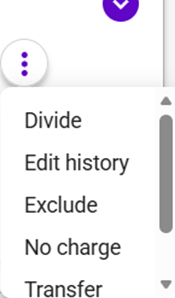
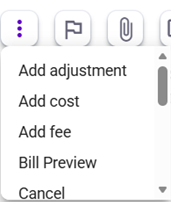
Late Time Entry:
Late time can be added directly to the Proforma, eliminating the need to wait for your biller.
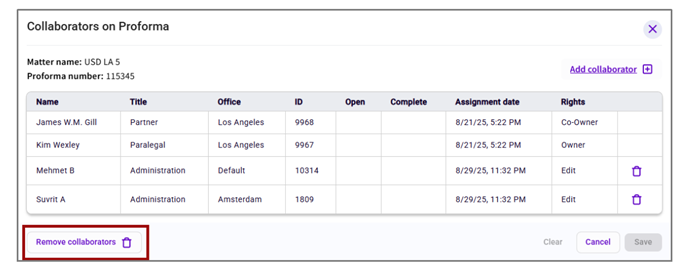
Collaborators:
Add collaborators to matters as needed.
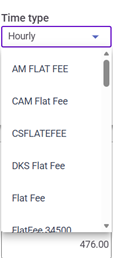
Billing Options:
You may bill using flat fee or hourly options.
Invoice Hold:
Selecting “Close” will hold your invoice until the next month.
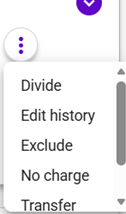
Dividing Entries:
If you divide an entry, ensure you select the checkbox to “add to current Proforma.”
Reviewing Proformas
1. Select the invoice you wish to review.
2. Review and edit as needed. You may copy and paste within the document.
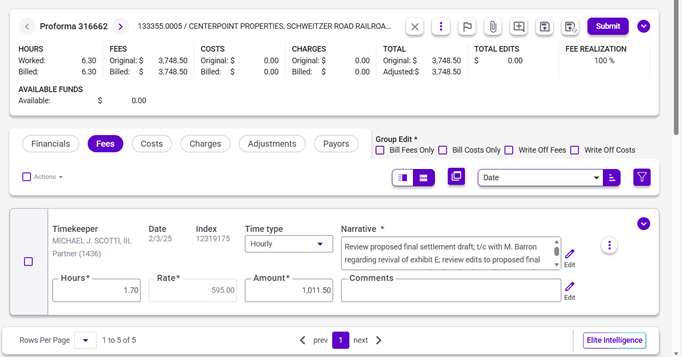
3. If all information is correct, press “Submit” (formerly “Bill Matter”).
Sorting & Filtering
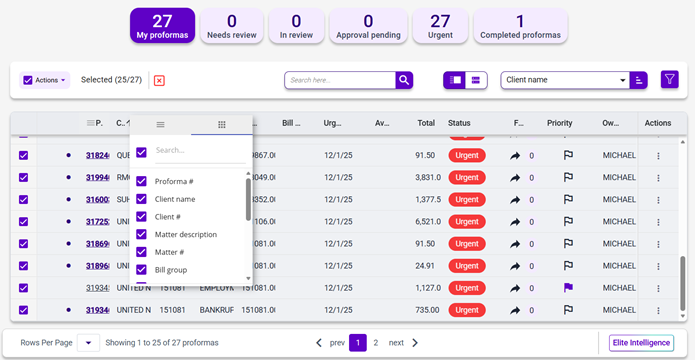
You can sort by a number of categories – such as name/funds available/etc.

Additional Notes
• Only the owner or co-owner can submit a Proforma. To add a co-owner as a preset at the client or matter level, or an ad hoc co-owner, contact Billing.
• Forwarding sends a notification and places the Proforma in the recipient’s queue.
• Use the “Submit” button to finalize and process invoices.
+++++++++++++++++++++++++++++++++++++++++++++++++++++++++++++++++++++++++++++++++++++++++++++++++++++++
Notes from ProForma Q&A Sessions
Q. I am seeing that when reviewing proformas and I collaborate an attorney, they get an email to review the proforma. Then attys gets an email that it was reviewed. Is there a way for the assistant to also get emails that the proforma has been reviewed so we know to go in and submit? Or is there a way to tell without me having to go back into each proforma?
No, there is not a way for legal assistants to get emails, but you could ask IT to do an auto forward from an attorney.
You will see returned in the sub-status.

Also helpful to see this icon if still waiting on collaborators.

Q.: I made some changes to a proforma. I needed to print in proforma form. I got the document on my screen and it is not in date order (I need in date order). It seems to be sorted by “index” number.
Can this be changed. I did not want it in “draft” bill format.
We have asked for a customization for this to appear in date order. We expect this to be resolved very quickly.
Q.: Adjustments needed
Send request to biller
Q.: I want to exclude time entries
Check box on left hand side, select exclude and do save and recalc, and do a preview
A gold bar pops us that you are excluding. The will come back when profromas are run again.
Q.: How do you apply UAL. It will not let you submit a bill without applying, but it will not let you apply without a receipt type. We have no pull down menu or list of receipt types.
The legal assistants can see the UAL balances but cannot apply them. You must let your biller know what you need.
Q.: There are now options that appear for UAL, but when you try to use UAL-PNC, you get an error. Will not let you apply. Says no such type.
There is a look up, start with what you know…and the look up will appear
Start typing UAL for this pop-up and select UAL-PNC

Q.: How do you see multi-payors or cost share arrangements? I tried payors, but it is empty. Ditto with other fields as to this information.
Open proforma, general info tab – look to the right
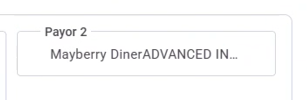
Or go to the payors tab just below

Q.: Yellow pop-up boxes with messages do not always provide a view of what the message pertains to. If it is for time cards or costs that are within the time period, shouldn’t it appear every time to request to add?
It should appear every time. There is a link in the pop up to review. If you still have questions, join a Q&A.
Q.: I reviewed a proforma for my atty but a different atty is the owner. I then follow the instructions to mark this as complete and forward it back to owner.
You should mark as complete and do nothing more. You shouldn’t do both.
Q.: Here are the instructions I followed per searching in help:
Completing a Proforma
When you have finished your edits and you want the proforma flagged as completed so that other users on the proforma’s collaboration know your work is done, do the following:
1. Locate the proforma containing funds on the Proforma list.
2. Select the check box in the Select column for the listed proforma.
3. Click the Proforma-level Action menu and select Mark as Complete. Any unsaved changes are automatically saved. The proforma will move from the My Proformas/Needs review/In review/Urgent list to the Completed list. A check mark will display in the Complete column of the Collaborator List.
The proforma was not removed from review list, not appearing on completed list. I tried several times.
I am getting an error: Proforma 302919
- Unable to find output: [__WorkFlowCompleteOutput__] on step [Display].
This is the correct error.
If you are working as the billing timekeeper you cannot use mark as complete, in 3E proforma there is no way for the owner to mark as complete. They must use submit to get it out of their queue if finished.
Q.: Proformas a getting locked
Be sure to always go back to the proforma list to prevent this from happening.

Q.: What do I do with this type of message?

You should ignore this type of informational message. 3E Elite has built in OCG billing guidelines. The billers will be required to address these type of messages before processing the actual bill.
Q.: I am getting this error, what should I do.

This is because the attachments for the cost cards entered on this proforma are using the same name. You will want to ask the Biller to fix that in Time Modify.
Q.: What is the difference between forward and collaborate.
They are practically the same. If you forward to someone they will appear as a collaborator.
Q.: When you go to collaborate a person, you put in their last name and then to the right of their name it says “edit” and there is a drop down box and you can choose co-owner. Is this a permanent change?
This is an ad hoc change that allows the collaborator to submit. To make a permanent co-owner change, please contact your biller.
Q.: Working in 3E Proforma, if there are no collaborators added, when clicking on Collaborator, would like to see the Owner and Co-Owner, but not have it display in the count of completed proformas. If you add a collaborator or you forward and then click on the Collaborator icon, it shows the owner and co-owner, but if there are none, you can't see when owner and co-owner. Would like to see owner and co-owner even if no others are added.
A product enhancement request has been submitted for this.
Q.: Can you explain ‘Reclaim’
If you forward or add a collaborator, there is no need to reclaim as the proforma never leaves that timekeepers queue. You'll never need it back, as you can do whatever you want even if you forward or collaborate. Reclaim is intended only if you submit and don't want the Billing Coordinator to bill it yet. If the coordinator has not opened it yet, the user can reclaim it and bring it back to their queue. If a user "Marks as Complete," it is not available for that either.
Q.: Are we able to distinguish between unallocated and trust funds in a proforma
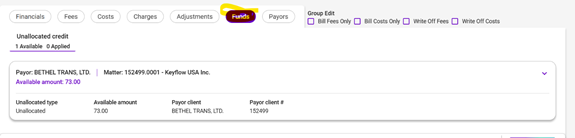
The first place it says is when you open the proforma. If there is trust it will separately say Trust balance available:
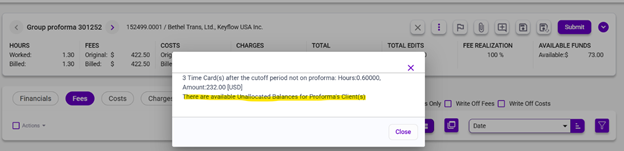
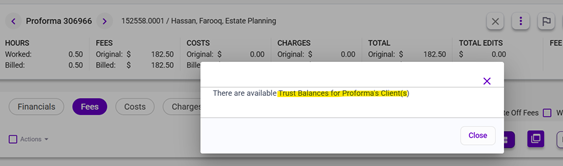
You can click on funds for unallocated. That option isn’t available for trust. Some proformas will say it has both trust and unallocated. You can only apply unallocated – trust would need requested and put into unallocated. I do not know if it says what matter the trust is on as it seems to go by client.
Q.: Is there an option for “Bill all Fees and Costs” rather than just Bill only Fees or Bill only Costs?
That is the default, check boxes are only there if you don’t want both.
Q.: Is there a Timekeeper Summary option?
Open proforma, goes to fees, change grouping to timekeeper, then you will see timekeeper summary
Q.: If we add a comment, but hit Close, will our biller still see the comment?
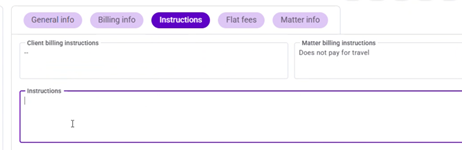
Put billing instructions for the biller in instructions vs. comments. Comments are to be used between collaborators.
+++++++++++++++++++++++++++++++++++++++++++++++++++++++++++++++++++++++++++++++++++++++++++++++++++++++
TIPS:
When working in Proforma, avoid using the browser back arrow or the “X” in the top right corner of the screen. Doing so can lock the Proforma and cause issues. Instead, follow these best practices:
- Use the in-app “X” button – Select this to be prompted to save any edits before closing.
- Use Save and Close – Select this option to properly exit and save your changes.
- Use Save and Recalculate – Select this when you need to update calculations before closing.
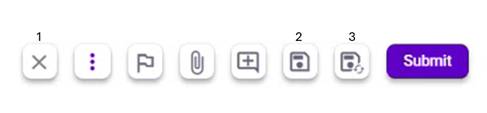
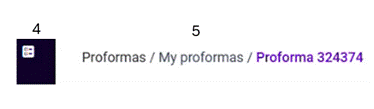
- Use the Proforma List link – Select this to return to your list.
- Or use My Proformas.
IF A PROFORMA IS LOCKED (A MESSAGE SHOULD INDICATE WHO IT'S LOCKED BY), WHOMEVER HAS IT LOCKED JUST NEEDS TO GO BACK INTO IT AND CLOSE IT PROPERLY USING ONE OF THESE ABOVE METHODS.

